Collect Diagnostics
Collect one archive of Management and Appliance evidence for a support investigation. Work as a Management administrator in Support > Diagnostics. The manual collection on this page starts only when you select Start collection. Management also retains available evidence automatically for some failed installations; see Failed-installation snapshots.
| Screenshots show the Management frontend with simulated example data. Versions, hostnames, timestamps and status observations do not describe a deployed appliance. |
Prerequisites
Download any previous diagnostics archive you need to retain. Starting another collection replaces it. Management keeps only the latest temporary result and loses it on restart.
If target-cluster evidence is needed, reconnect before starting. Without usable cluster credentials, Management still collects its own evidence and reports a partial result with the missing target checks explained.
Failed-installation snapshots
When a failed installation provides diagnostic evidence, Management tries to save a bounded snapshot. Capture is best effort, so a snapshot may be incomplete or unavailable for a failure. These snapshots are separate from the manual collection above and do not replace it.
Open Support > Diagnostics and find Failed installation diagnostics. The list shows each retained snapshot’s capture time, expiry time and size. Select Download installation archive to save a copy, or Delete installation archive to remove it. Deleting a snapshot also removes its retained diagnostic access.
Snapshots survive an installation retry. They expire after six hours by default, at the expiry time shown in the list, and a Management restart removes them. Download any snapshot you need before retrying or restarting Management.
Collect and download
-
Open Support > Diagnostics and select Start collection.
-
Wait for the outcome. Collection can take ten minutes after collector startup, with up to five further minutes for stopping, recovering partial evidence and assembling the archive.
-
If you need to stop the run, select Cancel collection. Management attempts to retain already collected evidence in a partial archive; cancellation is not immediate.
-
When Complete diagnostics available or Partial diagnostics available appears, select Download archive.
-
Verify download completion in the browser. Retain the file with the observed issue time, time zone, operation stage, and affected Appliance.
-
After retaining the required copy, use Delete archive if the temporary copy is no longer needed.
Ordinary log collection requests the last six hours; other collectors have their own scopes. An already-started collection is not always explicitly canceled when access expires, but closure of cluster network access can interrupt it. Renew access before a long collection and reconnect before retrying an interrupted run. A new run without current target access produces Management-only evidence.
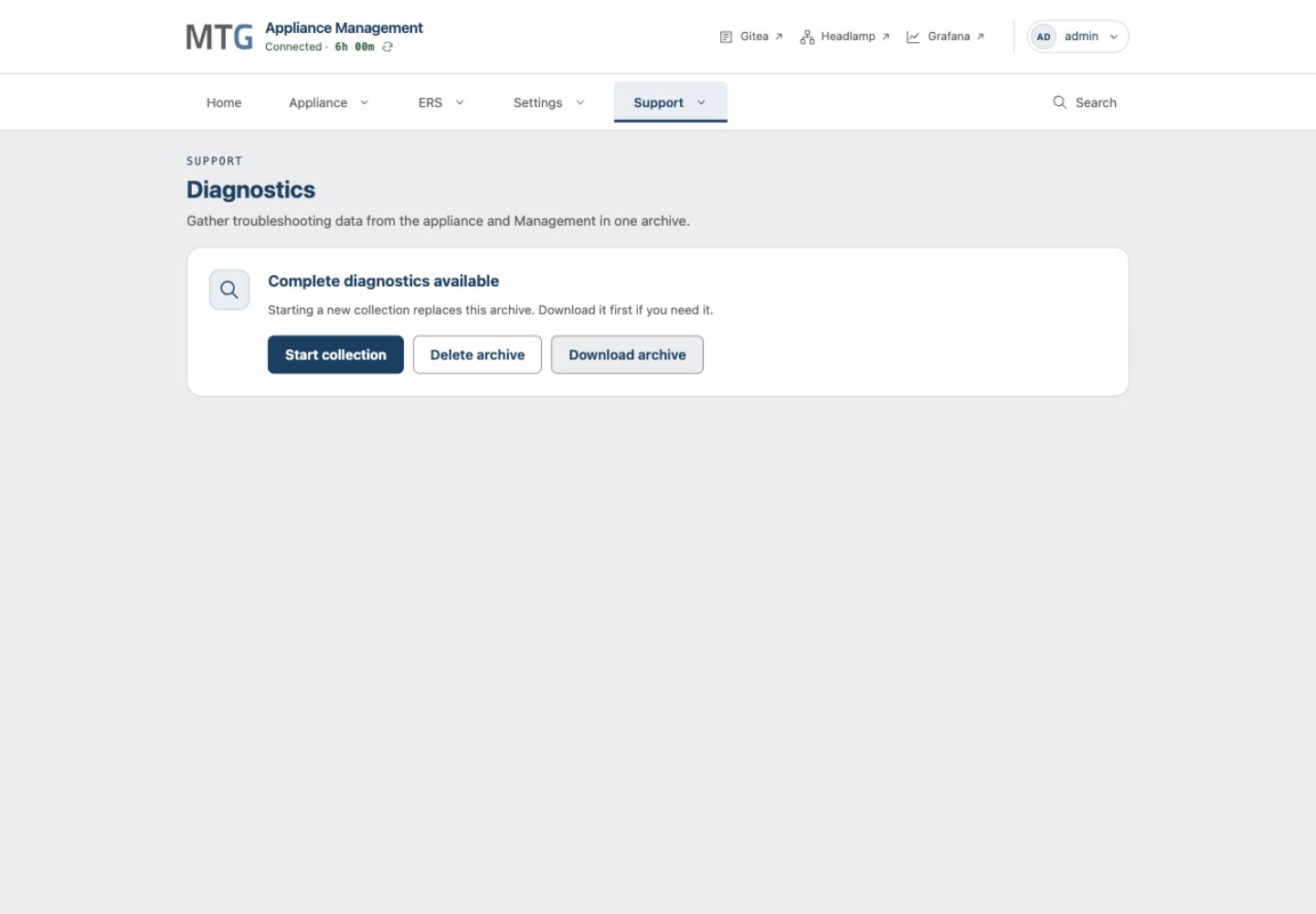
Understand the Result
| Result | Meaning and next action |
|---|---|
Complete |
Applicable evidence was collected. The archive may still describe an unhealthy Appliance. |
Partial |
Some evidence was unavailable, interrupted, or limited. Download it; available evidence can still explain the failure. |
Timed out with download |
Collection exceeded its limit, but an archive was recovered. Download the partial result before retrying. |
No diagnostics archive available |
Collection or final assembly did not produce a valid downloadable file. Preserve the error, check Management capacity and connectivity and start a new collection if appropriate. |
The archive can contain operational details, hostnames, addresses, logs and support data. Handle it under your organization’s support-data rules. Do not attach artifact bundles, private recovery identities, passwords, or HSM credentials in place of diagnostics.
When Management is unavailable
-
Open the Management VM console and select Logs.
-
Inspect View recent MTG host service logs and View warnings and errors. Use Follow MTG host service logs to observe a controlled retry; press
Ctrl+Cto return. -
If persistent storage is available, select Save logs to persistent storage. Record the exact path displayed by Logs saved. This export has size limits and covers the current boot.
-
Record the state error and relevant Show System Information values. Retrieve the saved file through your authorized host-administration channel.
Host logs and browser-collected diagnostics have different scopes. Provide both when the problem crosses the Management host and application. See contact MTG support.