Navigate around Management
Use Management to install and operate one Virtual Appliance. Open the HTTPS address configured when you initialized Management and sign in with Gitea.
| Screenshots show the Management frontend with simulated example data. Versions, hostnames, timestamps and status observations do not describe a deployed appliance. |
Find the right Task
The navigation changes when you connect an Appliance. While connected, Management holds the Appliance’s artifact bundle under an active cluster access lease. Your browser login is a separate session.
| Area | Use it for |
|---|---|
Home |
Check Management and Appliance status and choose the next task. |
Installation |
Install a new Appliance, reconnect a surviving Appliance, or recover from a backup. Management shows this area while disconnected. |
Appliance |
Inspect the connected Appliance and its nodes, update it, work with backups and inspect or edit secrets. |
ERS |
Initialize ERS on the installed Appliance, then manage interfaces, configuration, PKI information and HSM settings. HSM libraries are available before ERS bootstrap. |
Settings |
Prepare bundles and registry connections. With a connected Appliance, configure customer metrics, log forwarding and backup policy. |
Support |
Collect diagnostics, open the administrator terminal with active cluster access and find contact information. |
Choose a main section in the sidebar, then select a page from its secondary pane. Home has no secondary page list. On a narrow screen, open the navigation menu to choose a page.
Choose Search in the navigation to find a page by name or purpose. Search follows the pages visible to your account and connection state. If a result is unavailable, read its reason before continuing.
Use Settings > Backup settings to configure schedules, retention and external destinations. Use Appliance > Retained backups to inspect and download completed backups.
The header shows the remaining cluster access time. Use Manage cluster access to renew access or evict the artifact bundle. Before starting a long operation, consult the access renewal instructions.
The header links open Gitea, Headlamp and Grafana. Open Profile to inspect the signed-in identity and administrator status, change appearance, or Sign out.
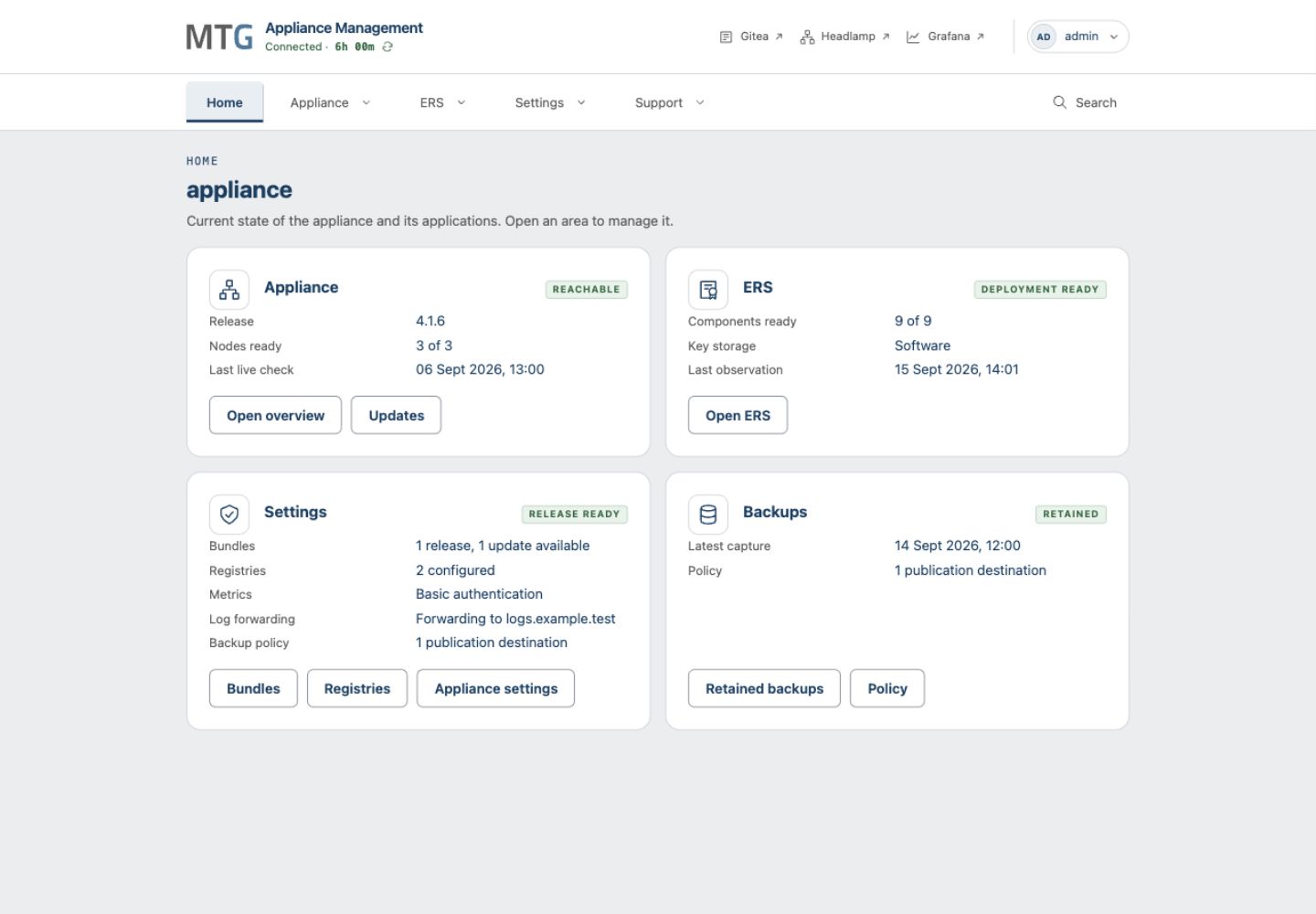
Understand the current State
-
Access available means Management holds connection credentials. Check Cluster status and Last live check for current reachability.
-
On Home, an ERS status of Unknown means Management could not obtain ERS status. Open ERS to check its connection before deciding whether setup is needed.
-
Installation configuration, including addresses and disks, can remain visible when a live check fails. Check live readiness before relying on those details.
-
A saved configuration is a Git commit. Publication delivers that configuration to the Appliance; reconciliation applies it. Verify the affected service after a change.
-
An action may be disabled until you sign in as an administrator, connect the Appliance, free Management storage or finish another operation. Read the reason shown before retrying.
If Management shows no connected Appliance after a restart or lease expiry, reconnect with the retained artifact bundle. If Management itself was lost, start with the recovery decision guide.
Installation and daily Operation
For a new deployment, complete Appliance installation before initializing ERS. For daily operation, start with health and logs.