Reconnect an installed Appliance
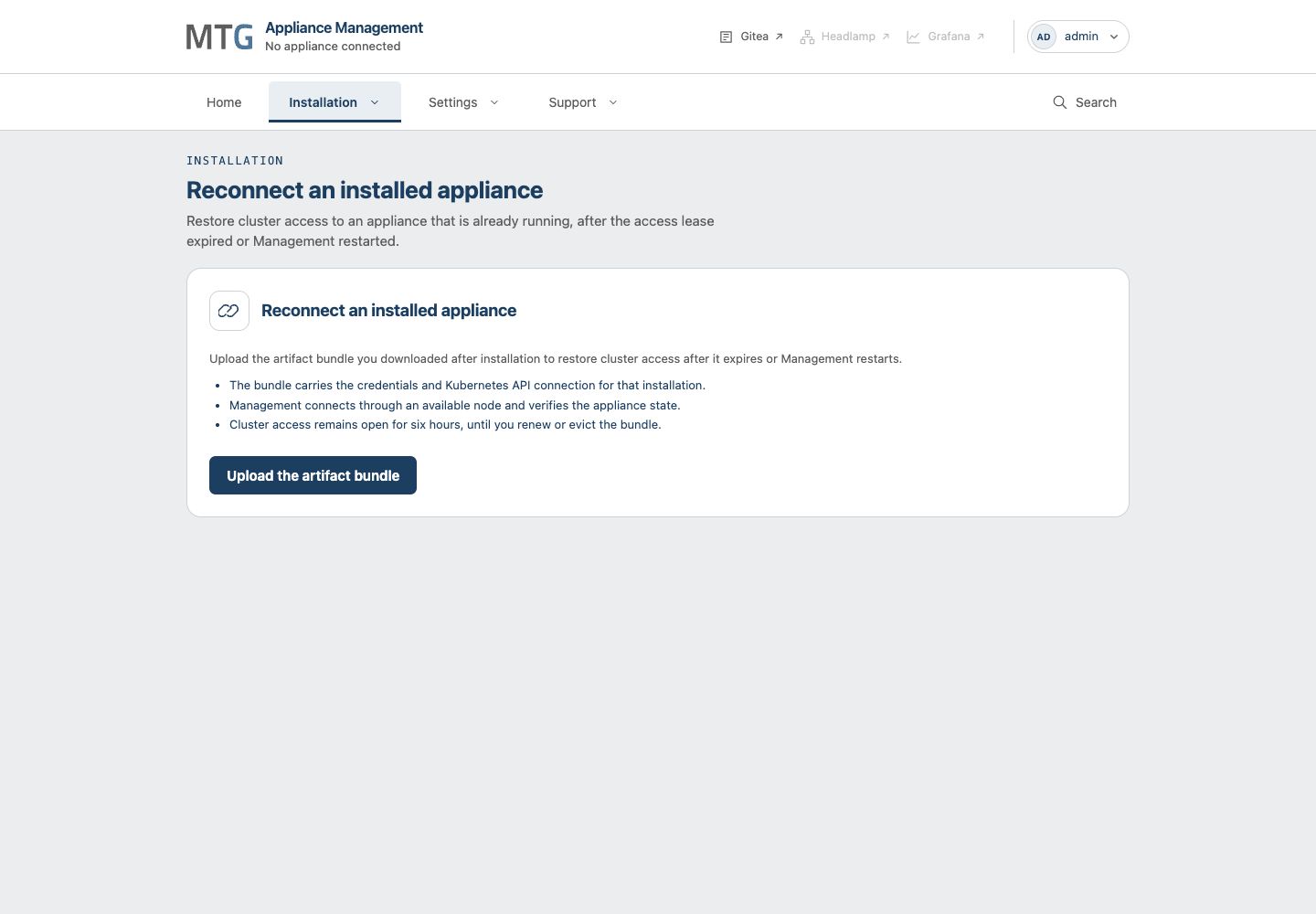
Upload the retained artifact bundle to restore Management access after its cluster access lease expires or Management restarts. The Appliance remains installed; reconnection does not reinstall it or restore application data.
| Screenshots show the Management frontend with simulated example data. Versions, hostnames, timestamps and status observations do not describe a deployed appliance. |
Prerequisites
Sign in as a Management administrator. Find the artifact bundle downloaded after installation and check that it belongs to the intended Appliance. It contains sensitive cluster credentials, so retain it in controlled storage outside Management.
Management must be able to reach the Appliance nodes. Finish or cancel the current installation and close its draft before reconnecting. Failed installation steps have their own recovery controls on the installation page.
If Management was lost and replaced, use the Management recovery procedure to reconstruct it. If the Appliance itself was lost, use backup recovery.
Restore Access
-
Open Installation > Reconnect.
-
Select Upload the artifact bundle and choose the saved installation artifact archive.
-
Wait while Management reads the bundle, reaches the cluster and verifies Appliance state on the nodes.
-
Open Appliance > Overview. Check the Appliance identity, Current release, Cluster status and Last live check.
-
Confirm that the expected nodes appear with current live readiness. Open the required administrator tools or ERS page to continue work.
If a canceled installation is still retained, uploading a bundle closes it and removes its retained input and logs. Download any evidence you still need before uploading.
Renew Access before Expiration
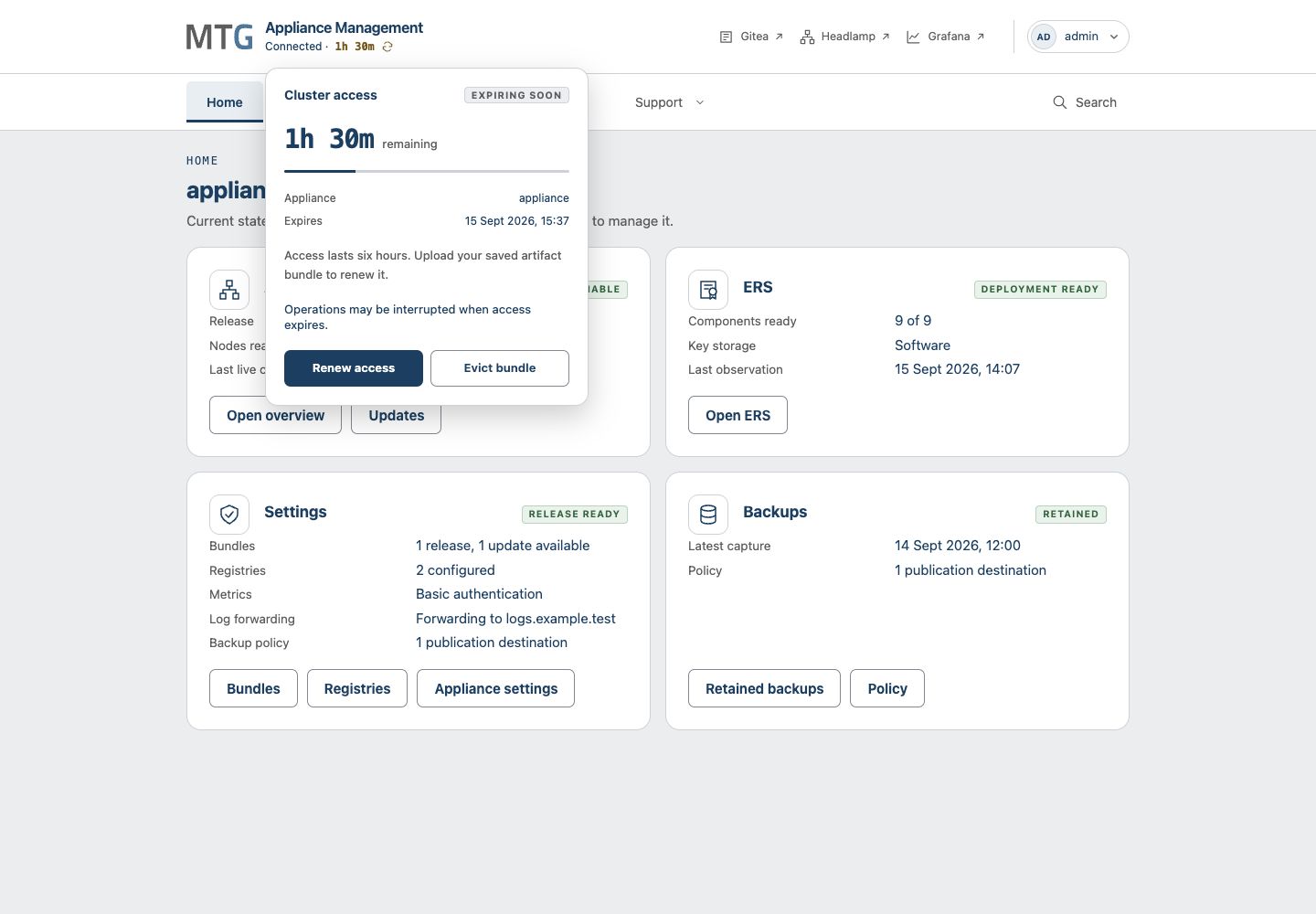
The connection indicator in the Management header shows the remaining six-hour access period. Open it to see the expiry time and the Renew access and Evict bundle actions.
-
Finish the running automated operation. Renewal is unavailable while an automated operation reserves access to make Appliance changes.
-
Open Manage cluster access in the header and select Renew access.
-
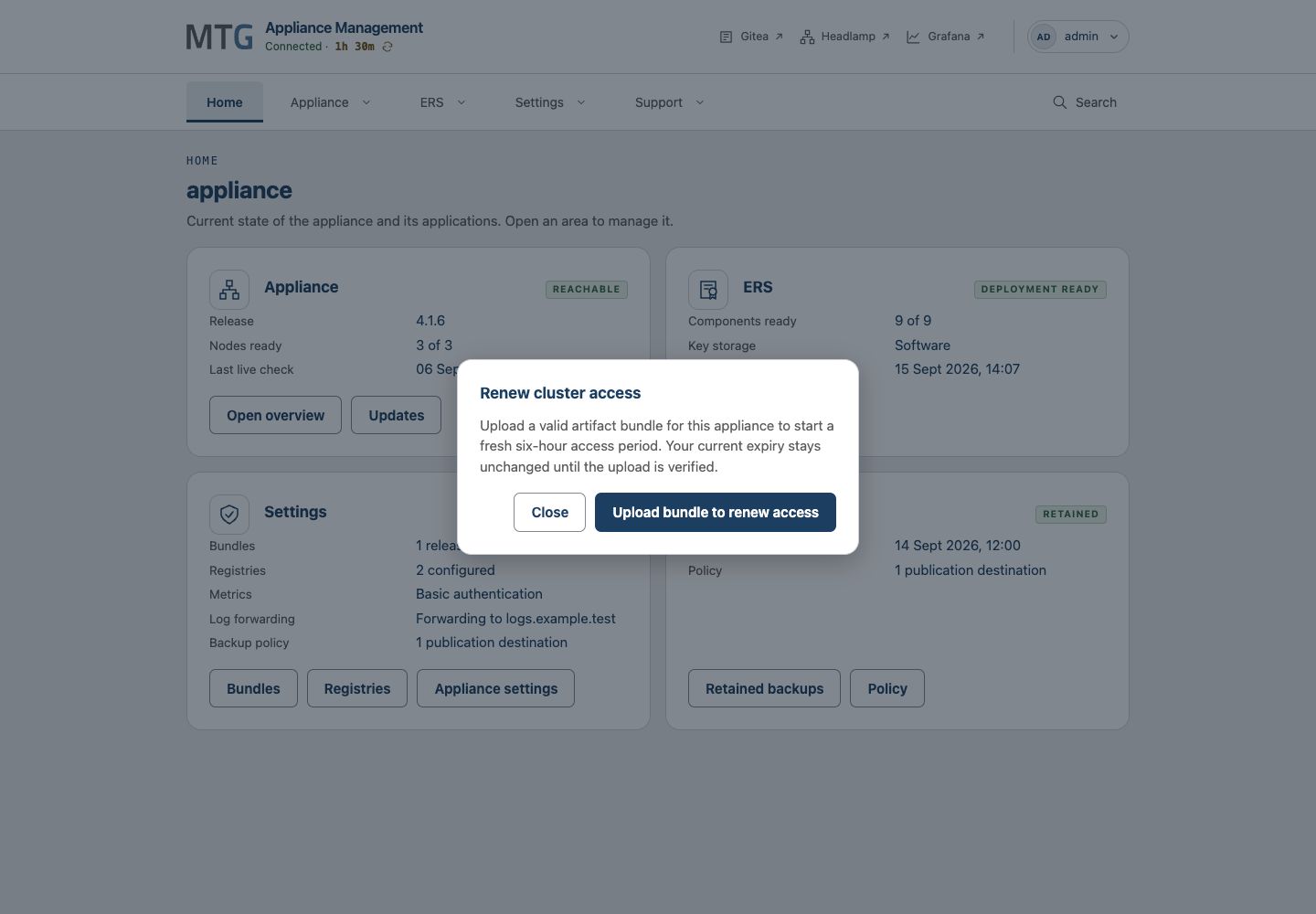
Choose Upload bundle to renew access and provide the retained artifact bundle for the same Appliance.
-
Wait for verification and check the new expiry time. A successful renewal starts a fresh six-hour period. Until verification succeeds, the existing expiry remains unchanged.
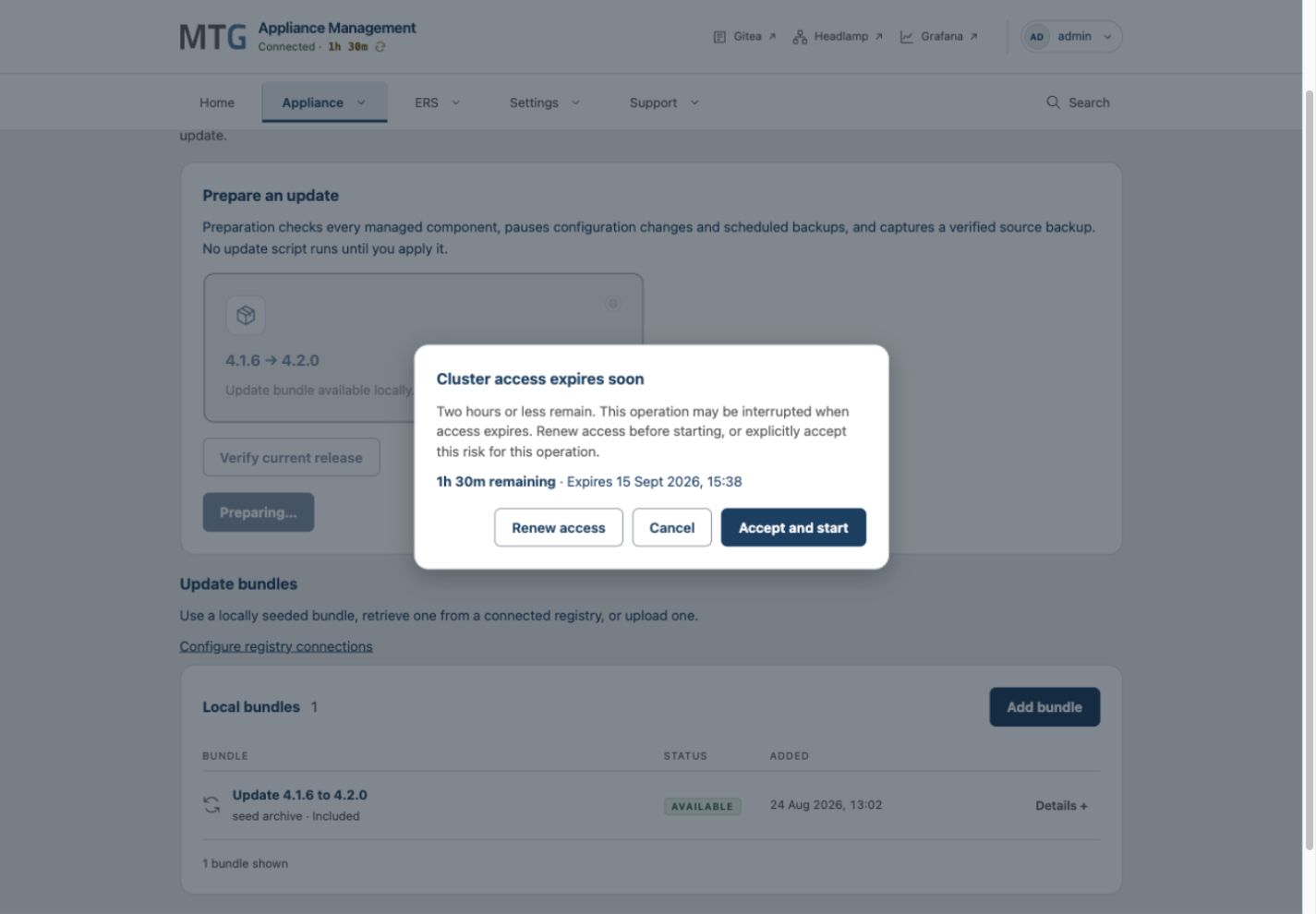
Ordinary use and browser sign-in do not extend the lease. With two hours or less remaining, Management warns before starting affected operations. Renew first, or choose Accept and start to accept interruption risk for that operation. Accepting the warning does not extend access. Once access expires, use Installation > Reconnect to upload the bundle again.
End Access deliberately
Keep a verified artifact bundle outside Management before ending access. Open the header’s cluster-access menu, select Evict bundle, review the cancellation warning and confirm. This removes Management’s retained bundle and attempts to close external Kubernetes and node-registry access. It cancels running GitOps and update jobs. It does not uninstall the Appliance, undo completed changes or revoke credentials in downloaded artifacts.
Expiry removes access in the same way. Some already-started operations and backup transfers are not explicitly canceled, but closing network access can still make them fail. An interrupted update requires a new valid bundle and an explicit Retry; access renewal does not resume it automatically. Full installation and Appliance recovery have their own attempt lifecycle.
If firewall closure is unconfirmed
Management distinguishes removal of its retained artifact bundle from closure of external Kubernetes API and registry access. Normal shutdown attempts cleanup, but a crash, host loss or unreachable node can prevent it.
If Management reports Access removed from Management; firewall closure unconfirmed, it could not confirm closure on every node:
-
Maintain the network firewall restrictions that limit administrative endpoints to approved sources.
-
Restore Management-to-node connectivity as needed and reconnect using the retained artifact bundle so Management can reconcile access. Reconnection opens a new access lease.
-
When ready to end that access, use Evict bundle again. Verify closure on every node before considering external Kubernetes API and registry access ended. If closure remains unconfirmed, keep the network restrictions in place and investigate the reported node or connectivity problem.
An expired countdown alone does not confirm remote closure when Management is unavailable. Ending the lease does not revoke credentials in downloaded artifact bundles.
Troubleshooting failed Re-connection
If the bundle could not be accepted, check both the selected file and node reachability. Select the artifact archive downloaded at installation completion; a release bundle or Appliance backup cannot substitute for it. Renewal requires the currently connected Appliance’s bundle. End the existing connection before connecting another Appliance.
Management can establish access with one reachable authenticated node; it does not need every node to be reachable just to connect. Operations can still need additional nodes, services or quorum. If the bundle is valid but the cluster cannot be verified, check the reported endpoint, network path and node readiness. Then select Try reaching the cluster again. An artifact bundle provides credentials; it does not repair an unreachable cluster.
If Management reports low storage or cannot determine capacity, resolve the storage problem before uploading. For persistent state verification errors, collect diagnostics.