Configure and retain Backups
Use Management to schedule backups, copy them to external storage and download completed backups.
Work as a Management administrator with the Appliance connected.
| Screenshots show the Management frontend with simulated example data. Versions, hostnames, timestamps and status observations do not describe a deployed appliance. |
What a Backup protects
A full Appliance backup contains cluster state and machine configuration, physical and logical database captures, the selected GitOps configuration with captured Git history and the selected HSM library when one is configured. Applications keep running during capture. The components are not all captured at the same instant.
Capture can run while Management’s temporary cluster access is open. The backup stores the persistent machine configuration with external Kubernetes API and registry access closed. Other differences between active and persistent machine configuration, or persistent configuration changes during capture, cause capture to fail.
Independent database recovery points contain database data only. They cannot replace a full backup for Appliance recovery. Management does not offer failed full runs or their component files as downloadable backups.
Full backups exclude metrics history, log history and Grafana’s local database and UI-created state. Provisioned Grafana configuration remains part of GitOps. External HSM keys require the HSM vendor’s backup procedure.
Configure the Policy
-
Open Settings > Backup settings.
-
Review Full backup schedule, Keep full bundles, Hourly database schedule and Keep hourly points (hours). Cron expressions use UTC. By default, full backups run daily at 01:00 and database captures run hourly at minute 10. The Appliance keeps the newest seven completed full bundles and 24 hours of hourly database points.
-
To export full backups, enable Publish completed full bundles to external destinations. Choose Add S3 destination or Add SFTP destination.
-
Enter the destination details. For S3, supply its endpoint, bucket, access key and secret. For SFTP, supply its host, port, user, private key and trusted
known_hostsentry. Set a prefix or directory if required. -
Select Save and apply, review the changes and confirm with Commit changes.
-
After the next scheduled capture, check Appliance > Retained backups for a new Full Appliance entry. Check the external destination separately for the transferred file and check monitoring for capture or export failures.
Changing the hourly schedule may interrupt an hourly capture in progress and starts a fresh backup. Cleanup applies changed retention settings to existing local backups, so reducing retention can remove older completed backups. External copies are unchanged. A successful settings save records the configuration; it does not prove that the next capture or external transfer will succeed.
The Encryption section shows the public backup recipient. The artifact bundle holds the private recovery keys. Changing the encryption recipient requires a separate procedure that preserves old recovery keys and updates the artifact bundle. Changing a backup destination does not rotate encryption keys.
Backup scheduling waits until the Appliance verifies that its encryption admission policy is active on every serving Kubernetes API server.
If initial backup setup remains pending, inspect Flux status and the backup-admission-ready Job in flux-system through Headlamp.
Correct the reported API-server or policy problem; do not bypass the encryption check to start captures.
Retain Copies outside the Appliance
Backups continue on the Appliance without Management or an active Management connection. External publication copies completed full bundles to each enabled destination; hourly database points remain local.
The destination administrator owns external retention and protection. Configure protected retention or snapshots there and credentials that cannot delete protected backups. Appliance cleanup does not delete external copies.
Local retention can expire a backup even when its external transfer failed. Monitor export failures and verify destination files. The number of retained bundles does not limit their total size. Monitor capacity as well.
Retry a failed external Export
An export Job makes up to three attempts. Once those attempts fail, cleanup automatically dispatches another transfer while the backup remains retained locally. Cleanup runs every minute by default and leaves active transfers running. Retry timing also depends on cleanup completion, Kubernetes scheduling and propagation of updated connection settings.
Retries use the destination name and path recorded with the backup, together with the current credentials, host and host-key trust. Changing the destination path affects newly captured backups.
To retry after correcting the destination:
-
Correct the destination connection settings and retain the failed export Job’s logs or a diagnostics archive.
-
Wait for the next cleanup run. To dispatch cleanup immediately, use the Operations Terminal with active cluster access:
kubectl -n backup create job --from=cronjob/backup-cleanup "backup-cleanup-manual-$(date +%s)" -
Inspect the new transfer and verify the file at the external destination. It reuses the stored encrypted archive without taking a new backup.
You do not need to delete failed Jobs to retry. Cleanup retains the first failed export Job for logs and alerts until its normal 24-hour expiry or a recorded successful export. After it observes success, cleanup removes the remaining failed Jobs and their Pod logs; monitoring then clears their export-failure alerts. Preserve any needed diagnostics before that cleanup. An alert clearing alone does not confirm a successful transfer.
Download a completed Backup
-
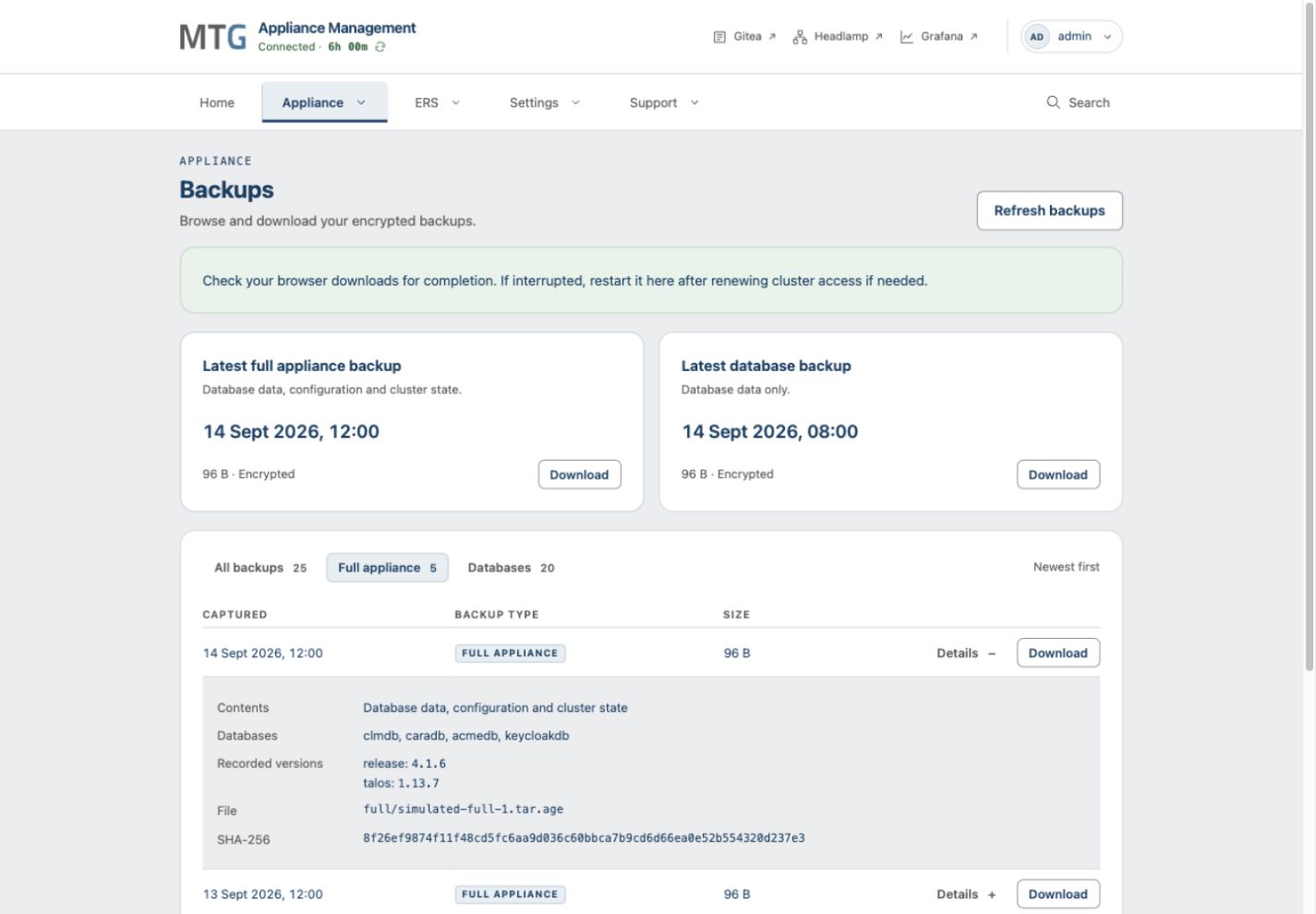
Open Appliance > Retained backups and select Refresh backups.
-
Choose Full Appliance or Databases to filter the list. Use Details to inspect capture time, recorded versions, file name and SHA-256 when available.
-
Select Download. Management checks availability before transferring the stored encrypted bytes unchanged.
-
Confirm completion in the browser’s download manager. If an SHA-256 value is displayed, compare it with the downloaded file using your workstation’s checksum tool.
-
Store the file with its capture time and version record. Retain its matching artifact bundle and the matching release bundle as described in appliance recovery.
Troubleshooting failed Downloads
If cluster access expired, reconnect, return to Appliance > Retained backups and restart the download. An already-started transfer is not always explicitly canceled at expiry, but closure of cluster network access can interrupt it. Do not rely on it finishing after access expires. Restart interrupted transfers from Management.
If retention removed the file, refresh the list and select an available backup. If storage cannot be reached, inspect health and logs. An empty list means no eligible completed backups are available; it does not confirm a successful backup schedule.