Manage Bundles and Registries
Use Settings to make release and update bundles available locally in Management. Retrieving or uploading a bundle does not install or update the Appliance.
Before starting, sign in as a Management administrator, obtain the release archive or registry credentials supplied with your release and check that Management has enough free space. A connected Appliance is not required to prepare release bundles.
To prepare files on an operator workstation, use Export bundle archives. Local container-engine credentials and images are separate from Management’s registry settings and bundle store.
| Screenshots show the Management frontend with simulated example data. Versions, hostnames, timestamps and status observations do not describe a deployed appliance. |
Configure a Registry
-
Open Settings > Registries.
-
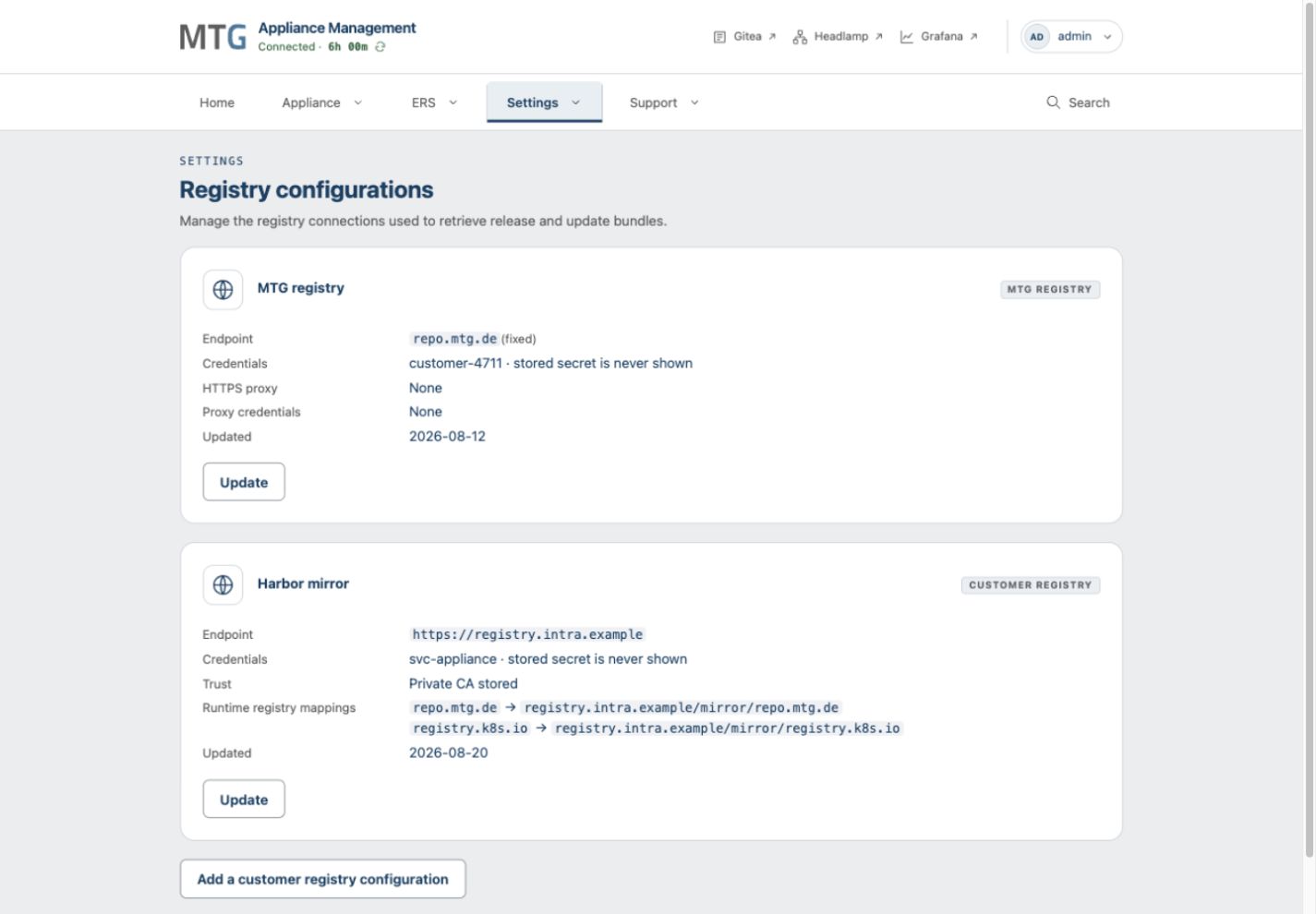
For the MTG registry, select Configure or Update. Enter the supplied username and secret. The endpoint is fixed at
repo.mtg.de. Expand HTTPS proxy if your network requires a proxy and enter its credentials when applicable. -
For a customer registry, select Add a customer registry configuration. Enter a name and HTTPS base URL. Enter credentials if the registry requires authentication.
-
For a customer registry with a private certificate authority, select Store a private CA for this registry and provide its PEM CA chain.
-
Configure Runtime registry mappings only if this registry will also deliver the release’s cluster runtime images. Use mappings provided for that release and registry layout.
-
Select Save configuration.
The registry list shows the saved endpoint, trust and credential status. Stored passwords are not shown again. A private CA chain remains visible and editable. To replace a password, enter a new secret; follow the form’s removal instructions when removing customer-registry or proxy credentials.
To check the saved registry configuration, open the bundle catalog and retrieve the required bundle.
Retrieve or Upload a Bundle
-
Open Settings > Bundles and select Add bundle.
-
To retrieve content, choose the registry source and a configured registry. Select the required release or update and use its Retrieve action.
-
To upload a delivered archive, choose the computer source, select Release or update, and use Choose file and upload.
-
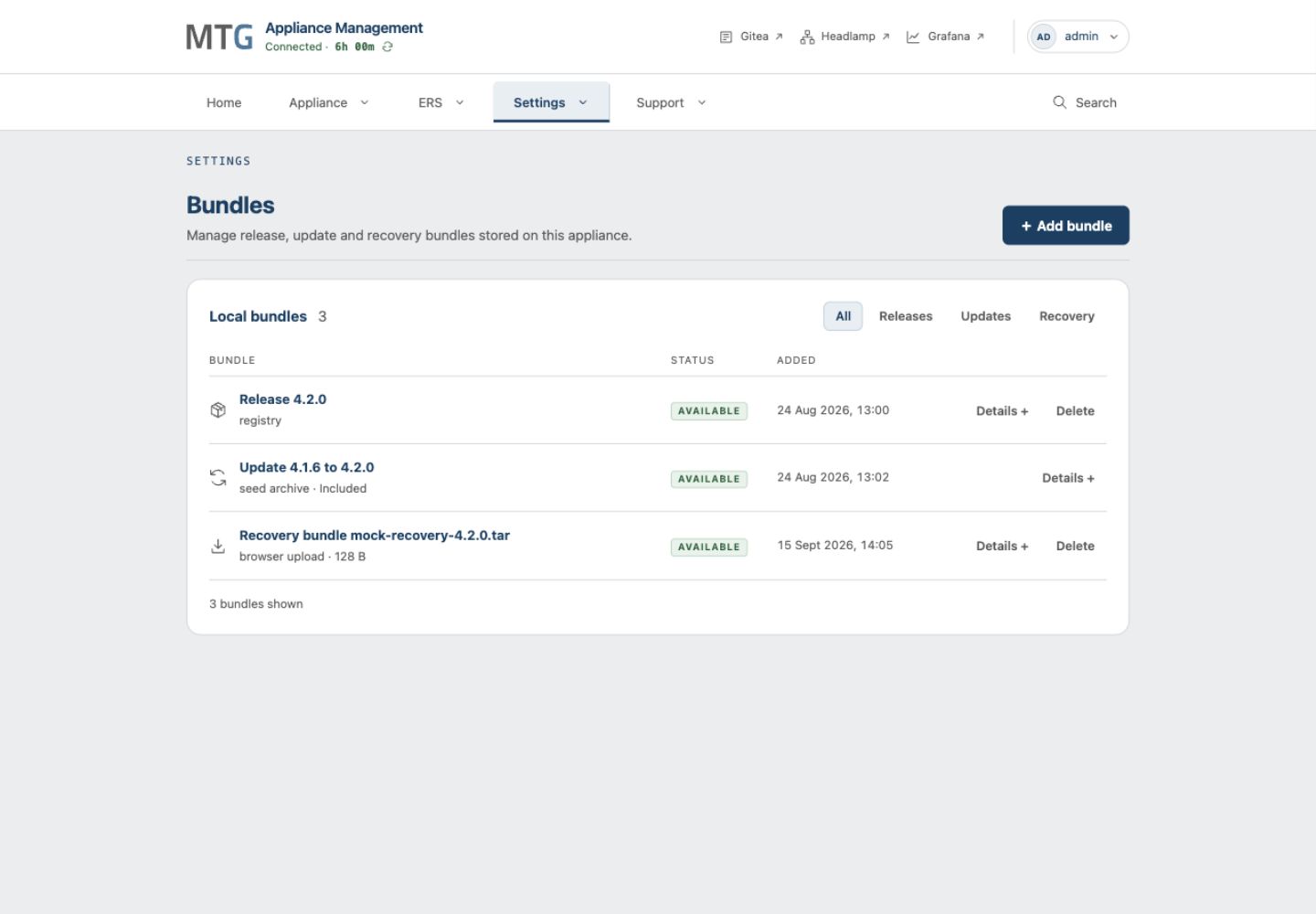
Follow the progress until the bundle list reports
available. Check the displayed target release and, for update bundles, the minimum source version. Use the Management build supplied for the target release.
Closing the add-bundle drawer does not stop an upload or retrieval. Progress remains in the bundle list. Resolve any reported download or validation error before using the bundle.
The Recovery bundle upload option stores an Appliance backup for a recovery operation. It is different from the artifact bundle used for reconnection. See Bundle types and backups.
Remove unneeded Local Bundles
Inspect the entry and retain any required copy outside Management before choosing its deletion action. If Management rejects deletion because a bundle is in use, wait for that operation to finish. Deleting a local copy removes that copy from Management; it does not uninstall the running Appliance.
If downloading or uploading is blocked by low disk space, use Management capacity maintenance. If a registry cannot be reached, check its configured URL, authentication, certificate trust and Management’s network path. Use the troubleshooting guide for persistent failures.