Microsoft CA Certificate Provider
If you operate a Microsoft CA, you can use the Microsoft CA certificate provider to issue and revoke certificates through CLM, allowing you to take full advantage of MTG CLM advanced certificate management capabilities.
| Some certificate request modes, cryptographic algorithms and ERS component might not be compatible with Microsoft CA certificate provider. For more details, see here 🔗. |
Prerequisites
In this section you will find the necessary configuration steps that must be performed, for the Microsoft CA certificate provider to function properly.
Prepare SSH
Install an SSH server on one Windows server and optionally on a second server. Check whether OpenSSH is already installed. Perform the operations in a PowerShell window, ran as administrator.
Get-WindowsCapability -Online | Where-Object Name -like 'OpenSSH*'The output is shown in below. In this example both the client and the server are not installed.
Name  : OpenSSH.Client~~~~0.0.1.0
State : NotPresent

Name  : OpenSSH.Server~~~~0.0.1.0
State : NotPresent
Install the SSH server:
Add-WindowsCapability -Online -Name OpenSSH.Server~~~~0.0.1.0| For more information see Get started with OpenSSH for Windows. |
SSH Server Availability
After restarting the computer where the SSH server runs, the service may be deactivated. You can either:
-
Start the server over the services' configuration of Windows (open
Services) by starting the serviceOpenSSH SSH Serveror -
Set the Startup type to Automatic, in properties tab shown below.
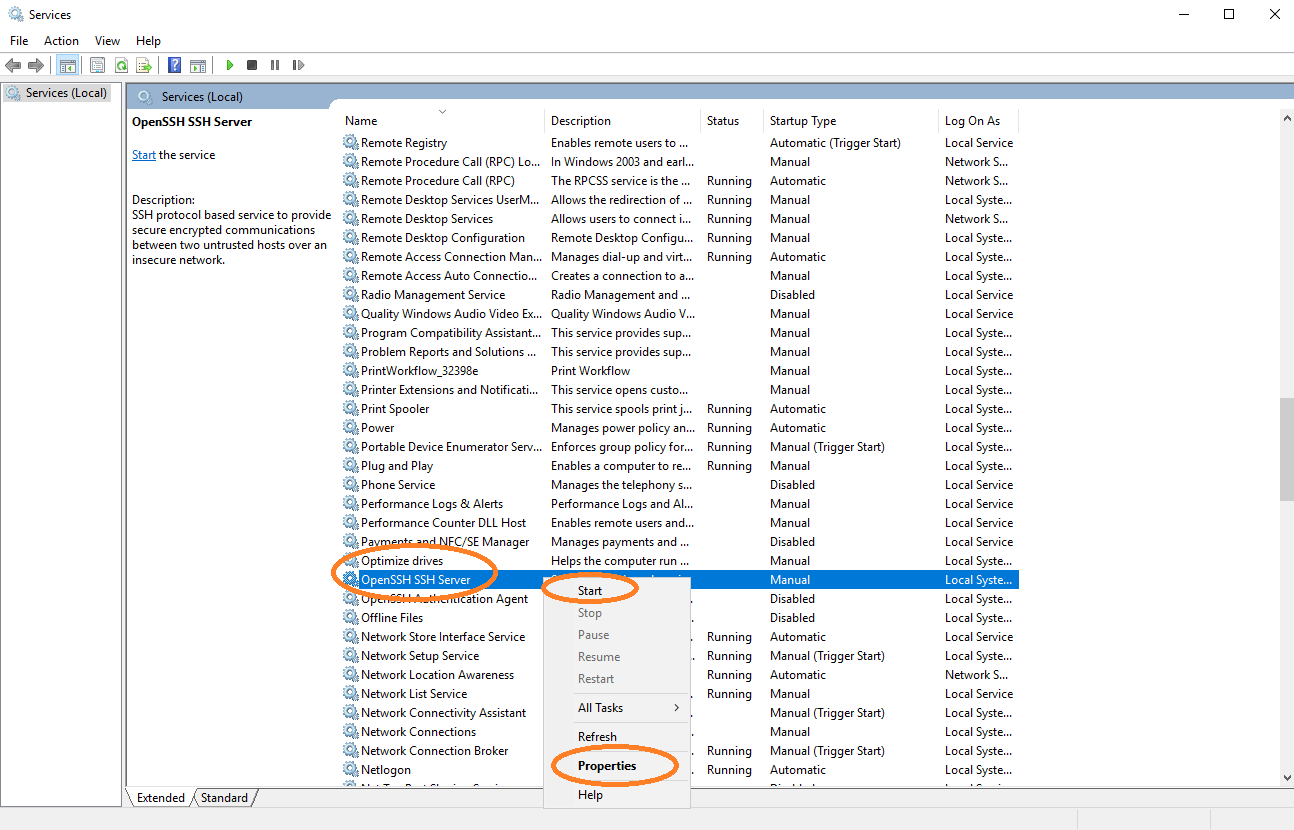
| Make sure the SSH server runs after a computer restart. |
You may repeat the steps described above in a second Windows server.
Template Management
Go to the server where Microsoft CA is installed.
Open cmd and type mmc to get the Microsoft Management Console and add the certificate templates option.
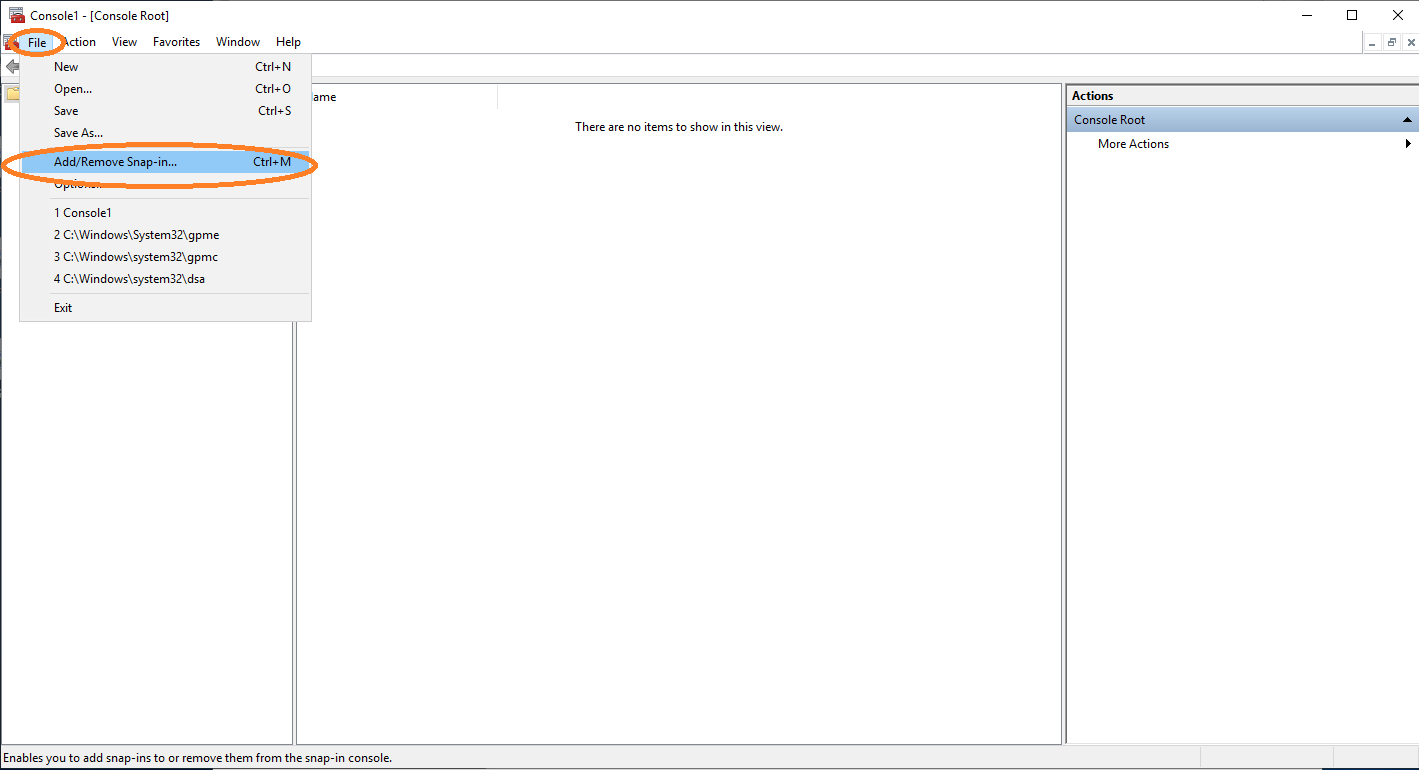
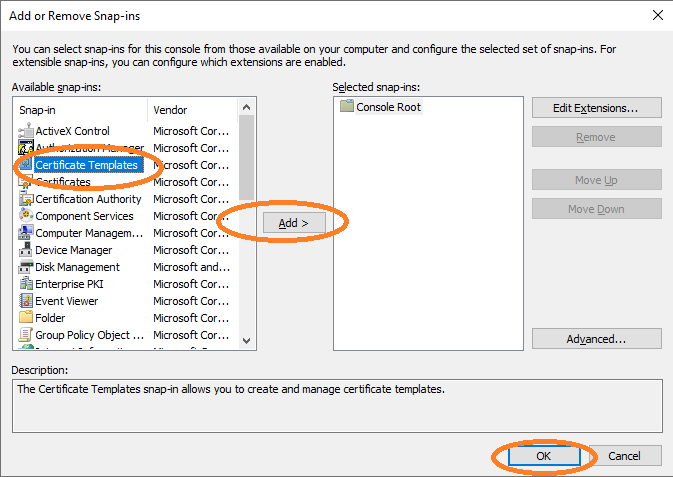
Duplicate the Web Server template and rename it to Web_Server_CLM.
The name of the templates must always end with the suffix _CLM, for templates to be located and used by MTG CLM.
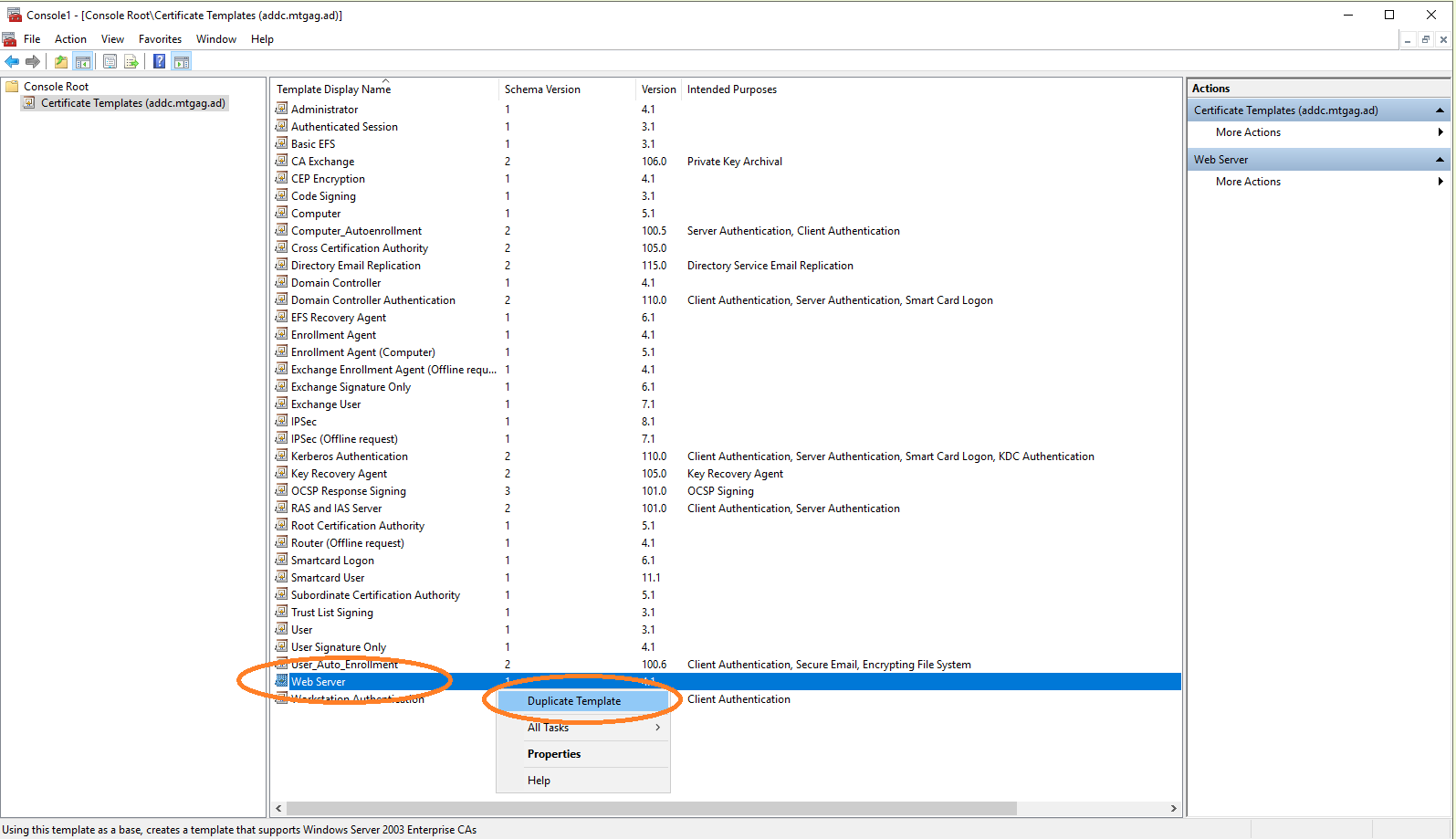
Templates that can be used by MTG CLM must always end with _CLM.
|
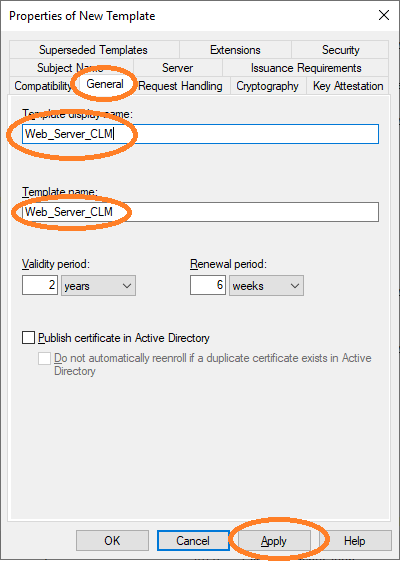
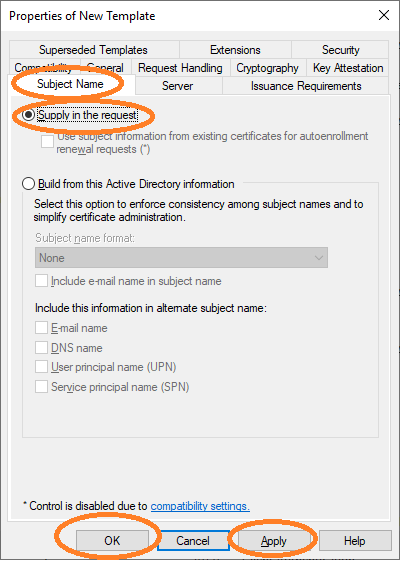
You may configure the new template Web_Server_CLM with the options of your choice.
| The Subject Name must be configured to be supplied in the request. |
Lastly, you must configure the new template to the templates of
Microsoft CA. Open Certification Authority.
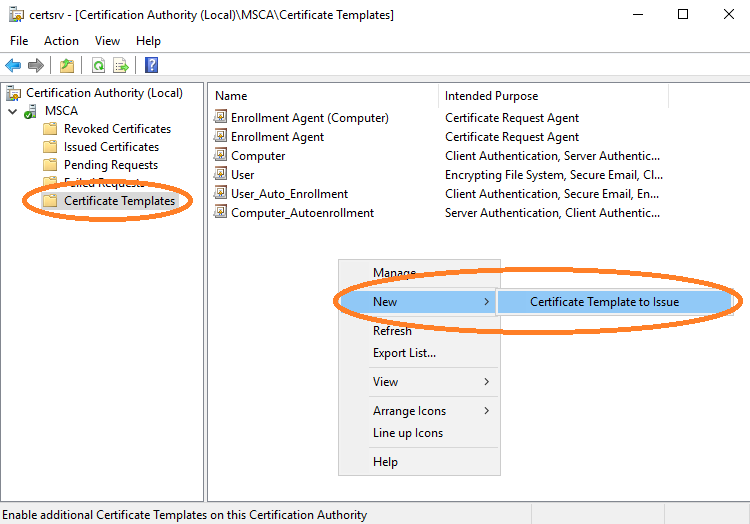
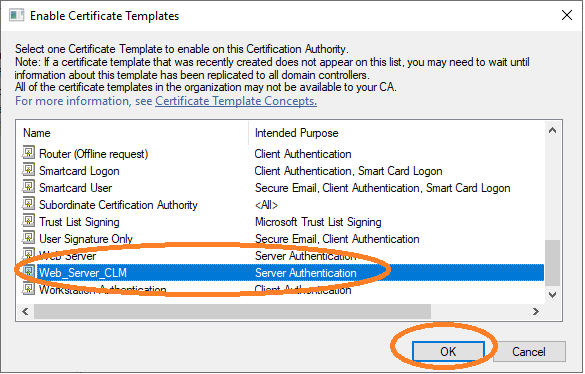
The Web_Server_CLM template now appears in the templates
that can be used by the Microsoft CA.
User Management
A new Windows user which is responsible for the requesting, approving and revoking certificates must be added and configured.
Choose the name CLM-EnrollmentAgent for this user, provide a password and set this password to never expire.
Open Active Directory Users and Computers and add a new user.
Provide the User logon name.
Provide the password and set it to never expire.
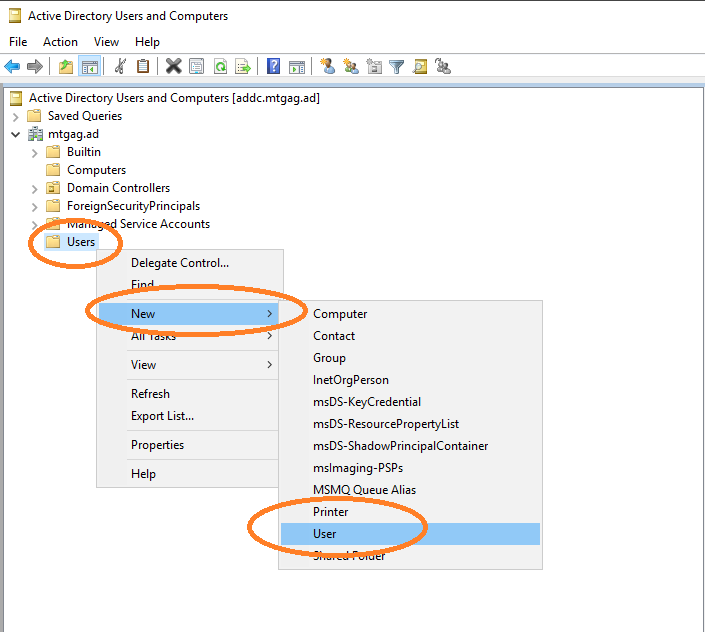
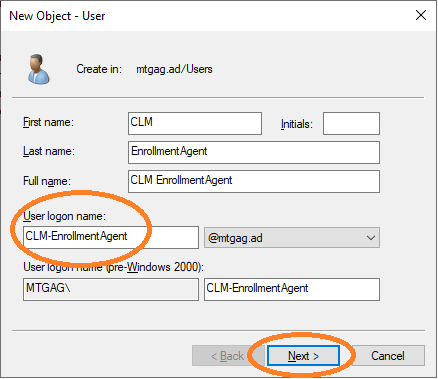
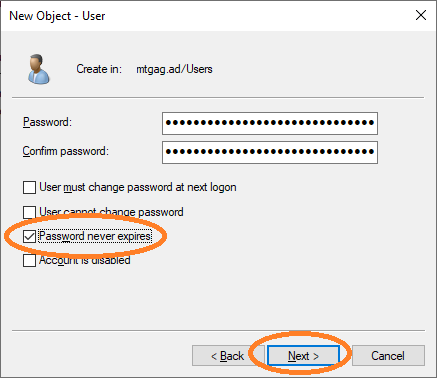
Granting SSH Access:
Because MTG CLM connects to the Microsoft CA via SSH, the CLM-EnrollmentAgent must be authorized to establish an SSH session on the Windows server.
Ensure this user is added to the appropriate local security group on the server (such as the Remote Management Users group) or explicitly permitted in the Windows OpenSSH sshd_config file.
The ssh config file can be found under: C:\ProgramData\ssh\sshd_config
|
Template Permissions
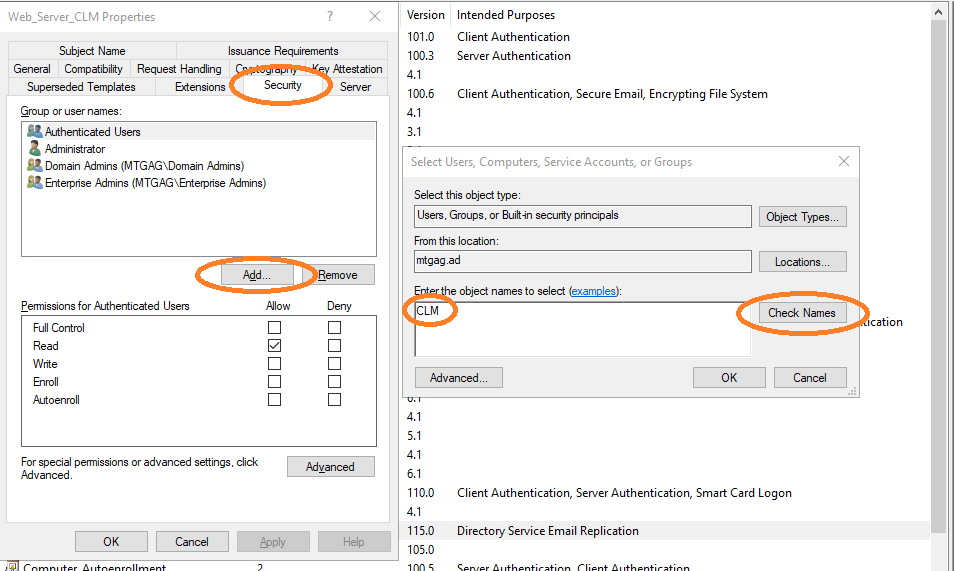
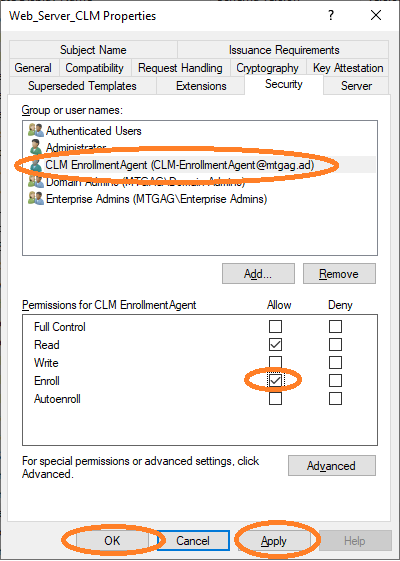
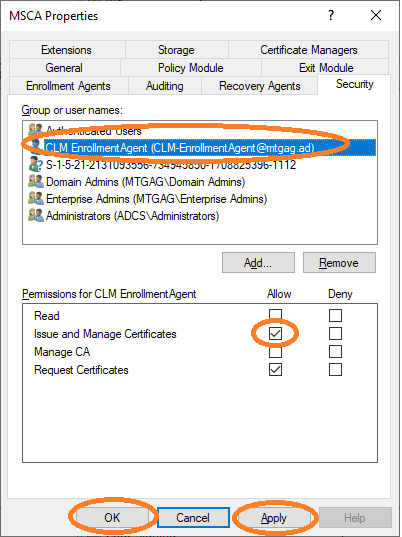
Finally, the CLM-EnrollmentAgent must be properly configured to be allowed to enroll certificates for this template. Navigate to the security properties of this template and add the CLM-EnrollmentUser. Then, allow the user to enroll certificates and additionally disallow enroll access to this template for other users.
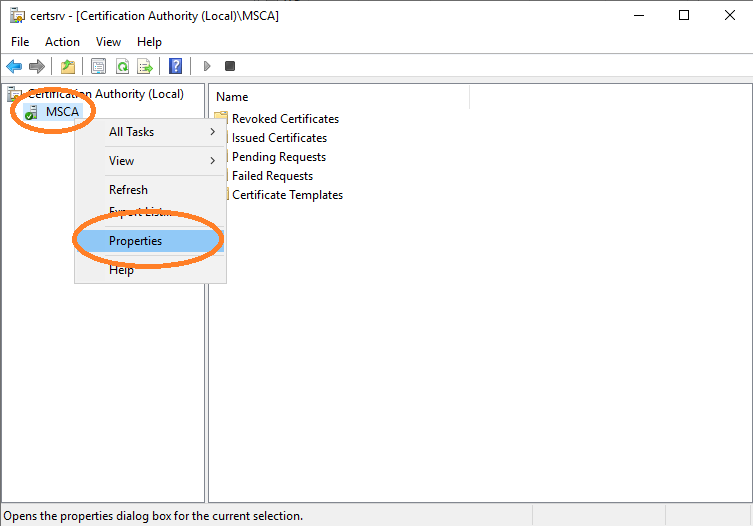
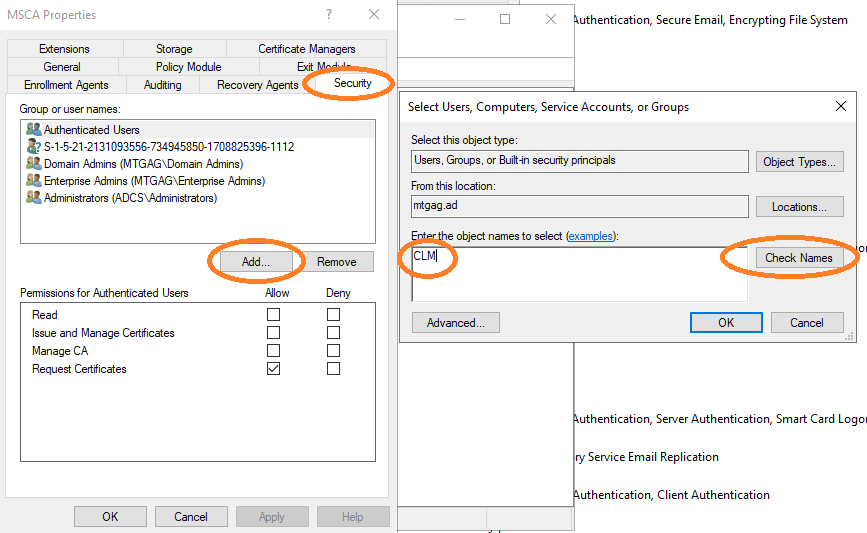
This user must be configured to be able to revoke certificates. Navigate to the properties of the Microsoft CA → security properties to add the CLM-EnrollmentAgent user and allow this user to issue and manage certificates. Now this user is able to issue and revoke certificates over MTG CLM.
Microsoft CA Provider Configuration
When creating or configuring the Microsoft CA Certificate Provider (under Administration → Certificate Providers in MTG CLM UI), enter the following parameters into the MTG CLM mask:
-
Name: A logical name for this provider within MTG CLM.
-
SSH Address: The network address or hostname where the intermediary server is located.
-
SSH Port: The port exposed on the intermediary server for SSH connections.
-
SSH User | The Windows user with SSH access to the computer running on SSH Address.
-
SSH Password | The Password of the SSH User.
-
CA Name: The exact logical name of the Microsoft Certificate Authority.
To find the exact CA Name, execute the following command from an administrative command prompt on the abovementioned server:
certutil -config - -pingThe command output will display the required
Machine\CANamestring. Extract the CA Name from this output to use in the mask.
An example output could look like:WIN-EE3PDACKMHC.demo.mtg\demoCA1The certutil command also tests that your newly set up server can reach and communicate with the Microsoft CA. Check to make sure that no firewall rules on the server are blocking this connection.
Additionally, fallback fields are available. In case CLM systems fail to connect to main Windows instance, fallback values will be used, if present, to try to connect to secondary Windows instance. Fallback fields are not required and can be later added, removed or edited.
Activate Microsoft CA Certificate Provider
Provided you have already completed the necessary steps described above, you are all set to activate the Microsoft CA certificate provider within your realm of choice.
To do so:
-
Navigate to MTG CLM UI → Realms and click on your preferred realm name to edit its details.
-
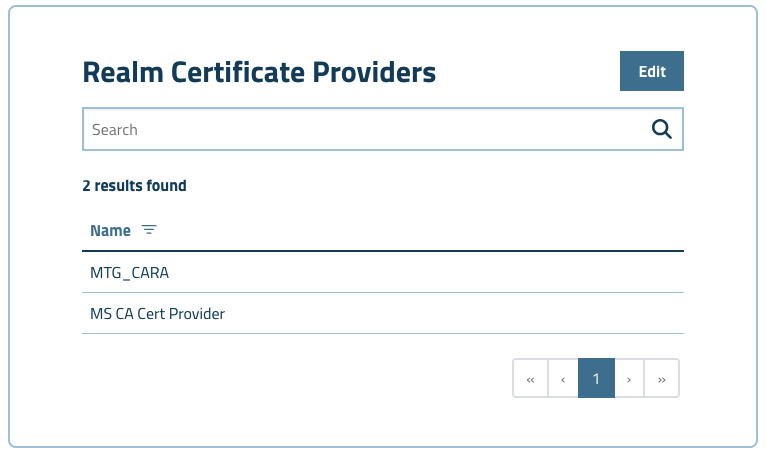
In the Realm Certificate Providers panel click Edit.
-
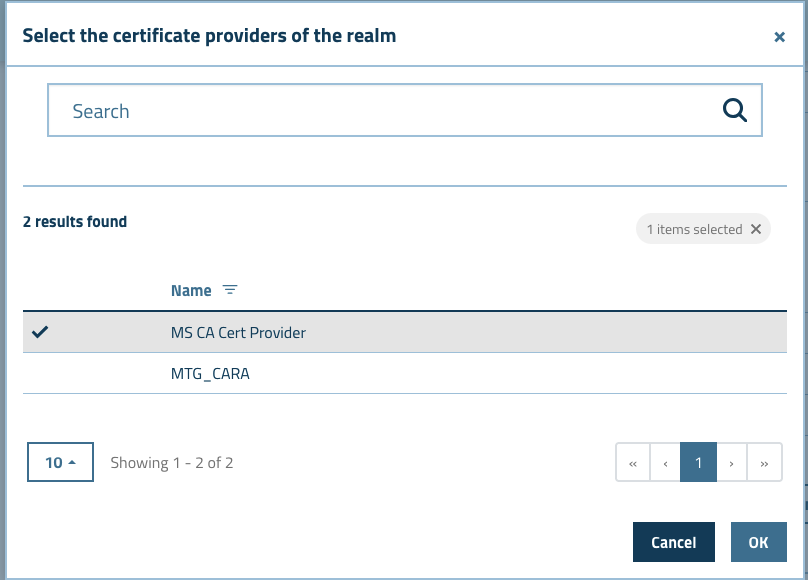
Add the Microsoft CA certificate provider.