PSW - Public CAs Certificate Provider
| Some certificate request modes, cryptographic algorithms and ERS component might not be compatible with PSW - Public CAs certificate provider. For more details, see here 🔗 |
This page walks you through the integration method to create certificates using PSW certificate provider within MTG CLM. It covers the initial steps needed within the PSW console, as well as those to be completed within MTG CLM.
PSW Console Integration Steps
-
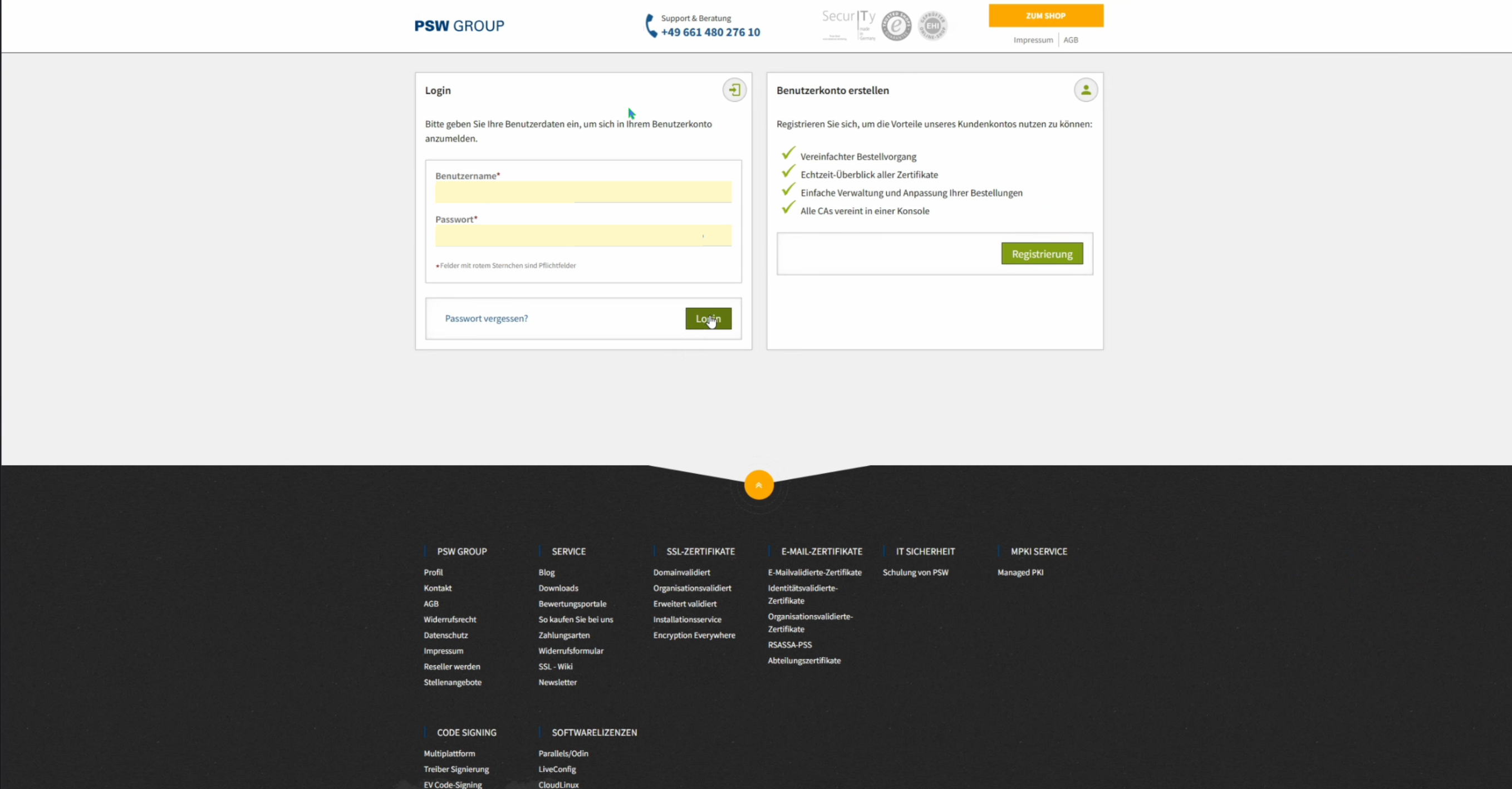
Log in with your account details at www.psw-group.de/console/login.
-
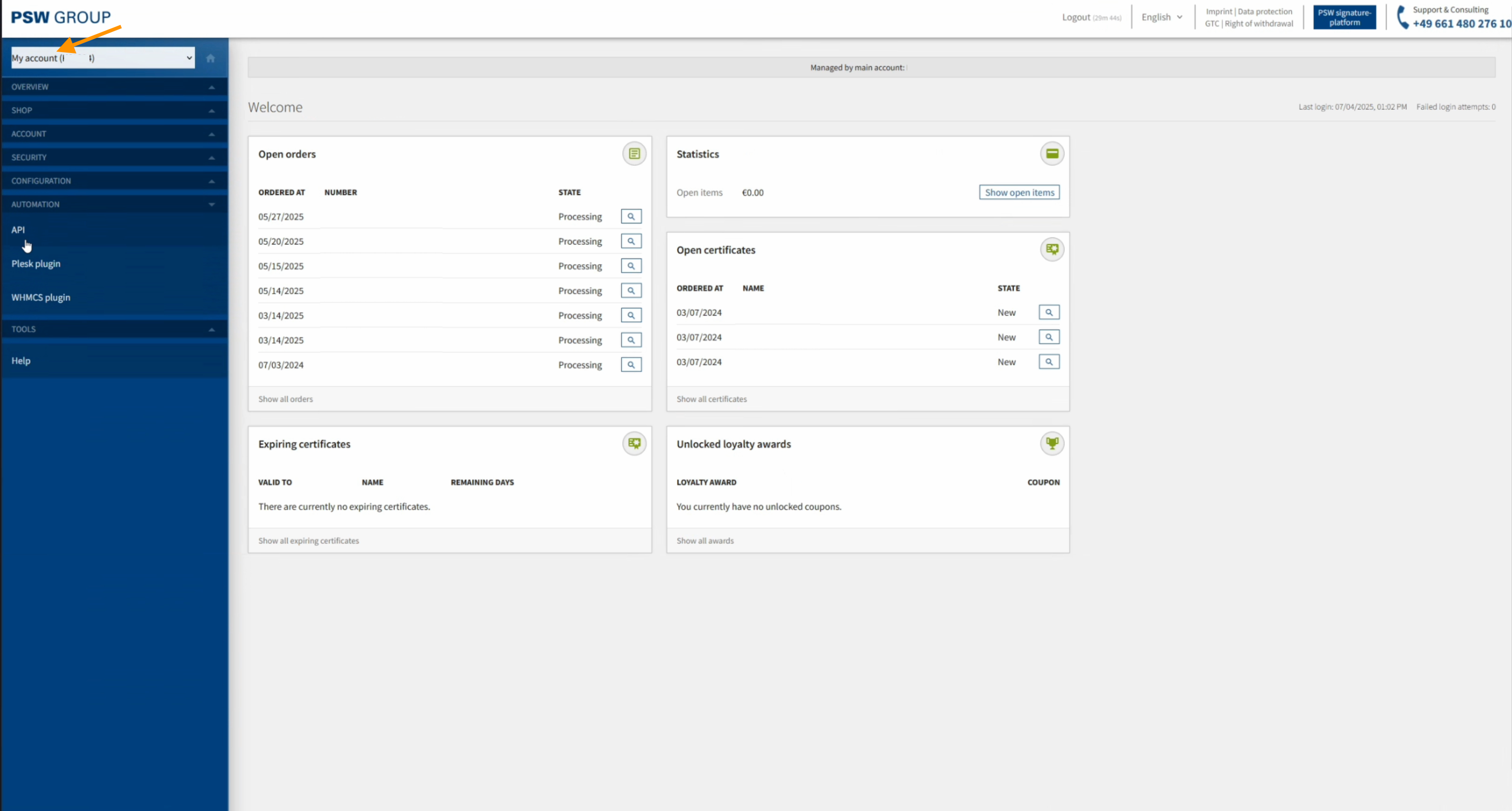
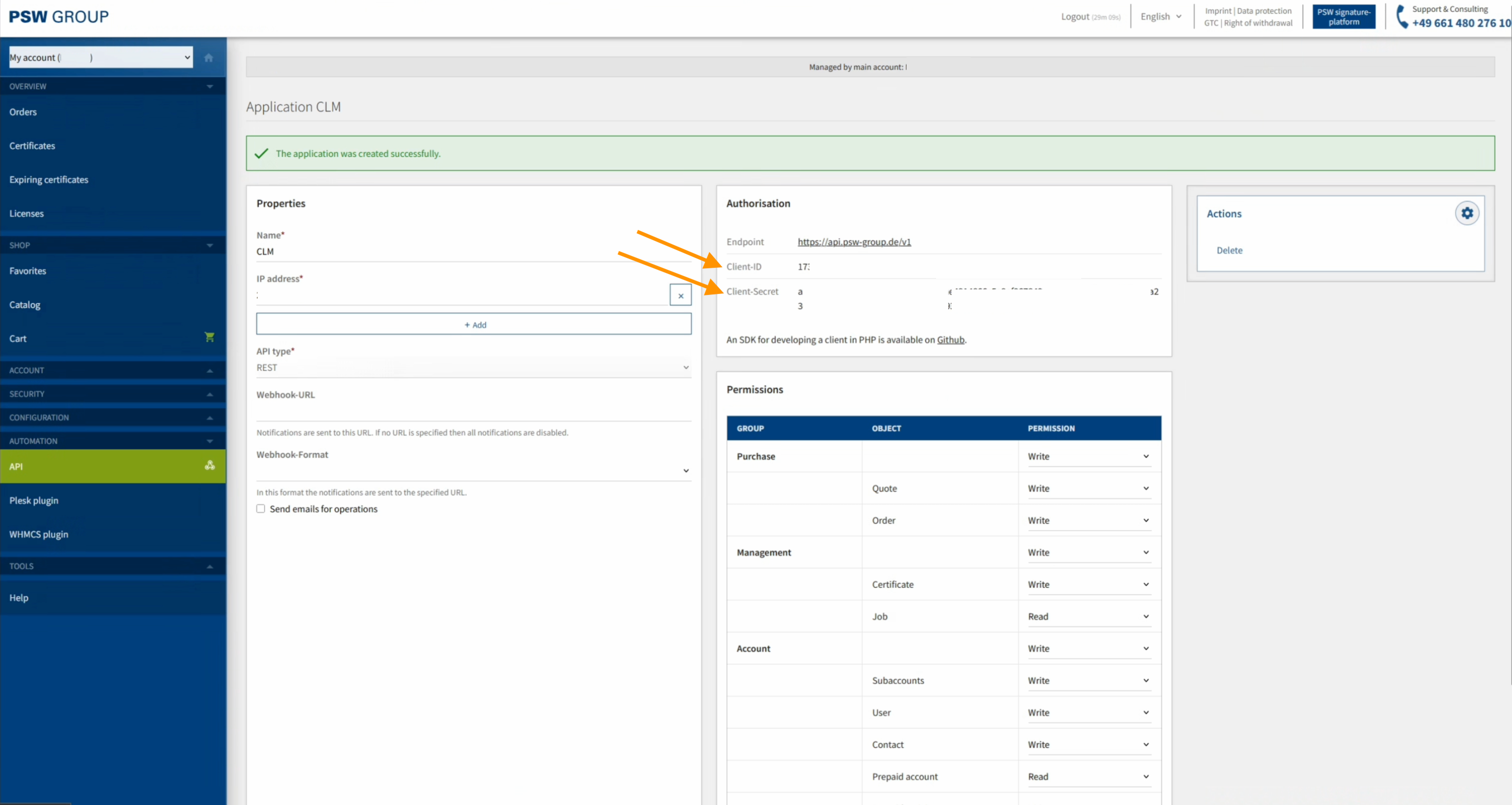
Click API, under Automation in the left sidebar.
-
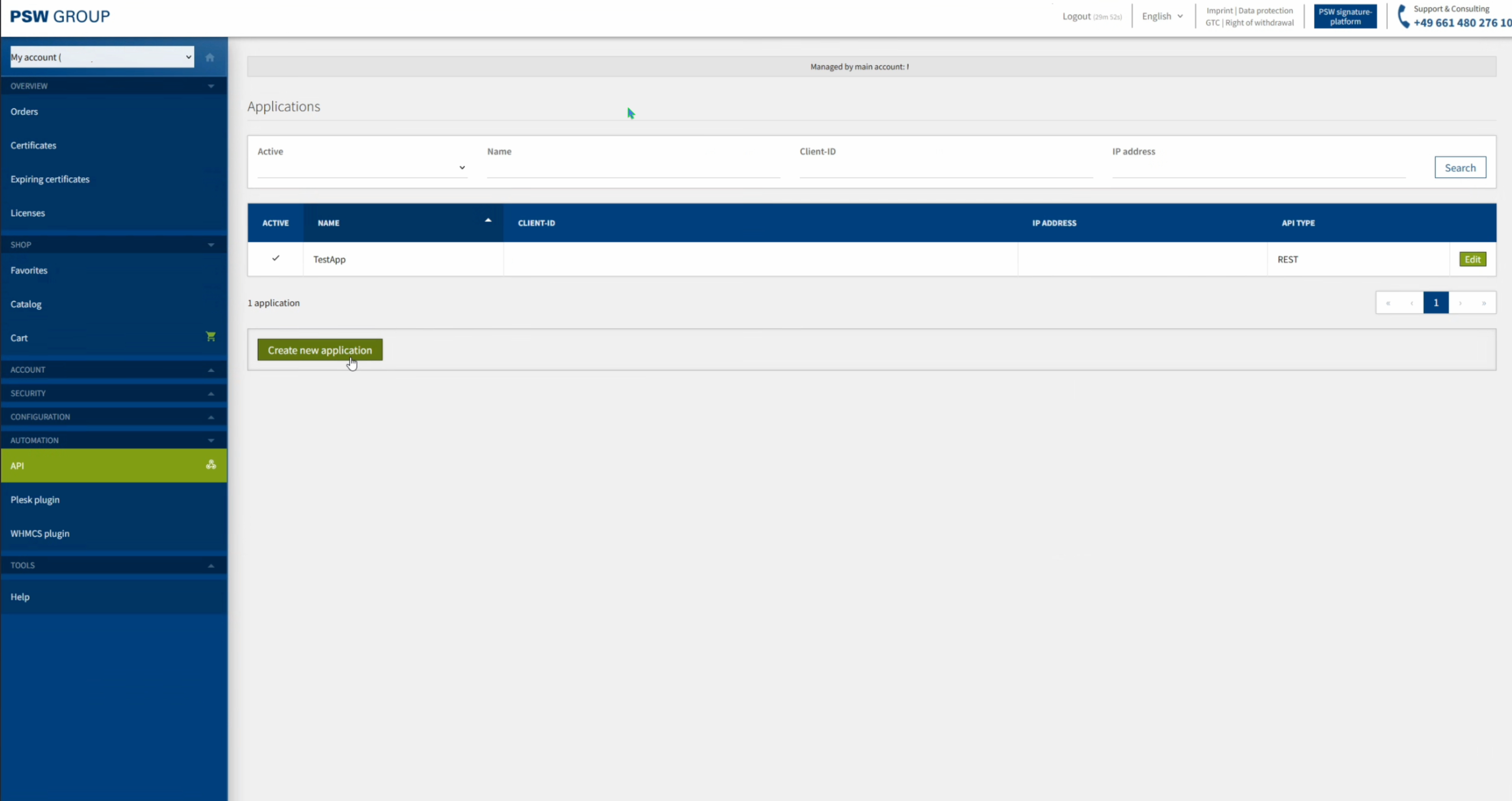
Click on the Create new application button.
-
Fill in a Name and a source IP Address for your application. Also, select the API type.
Make sure the IP you fill in is already shared between you and PSW so that it becomes positive listed. 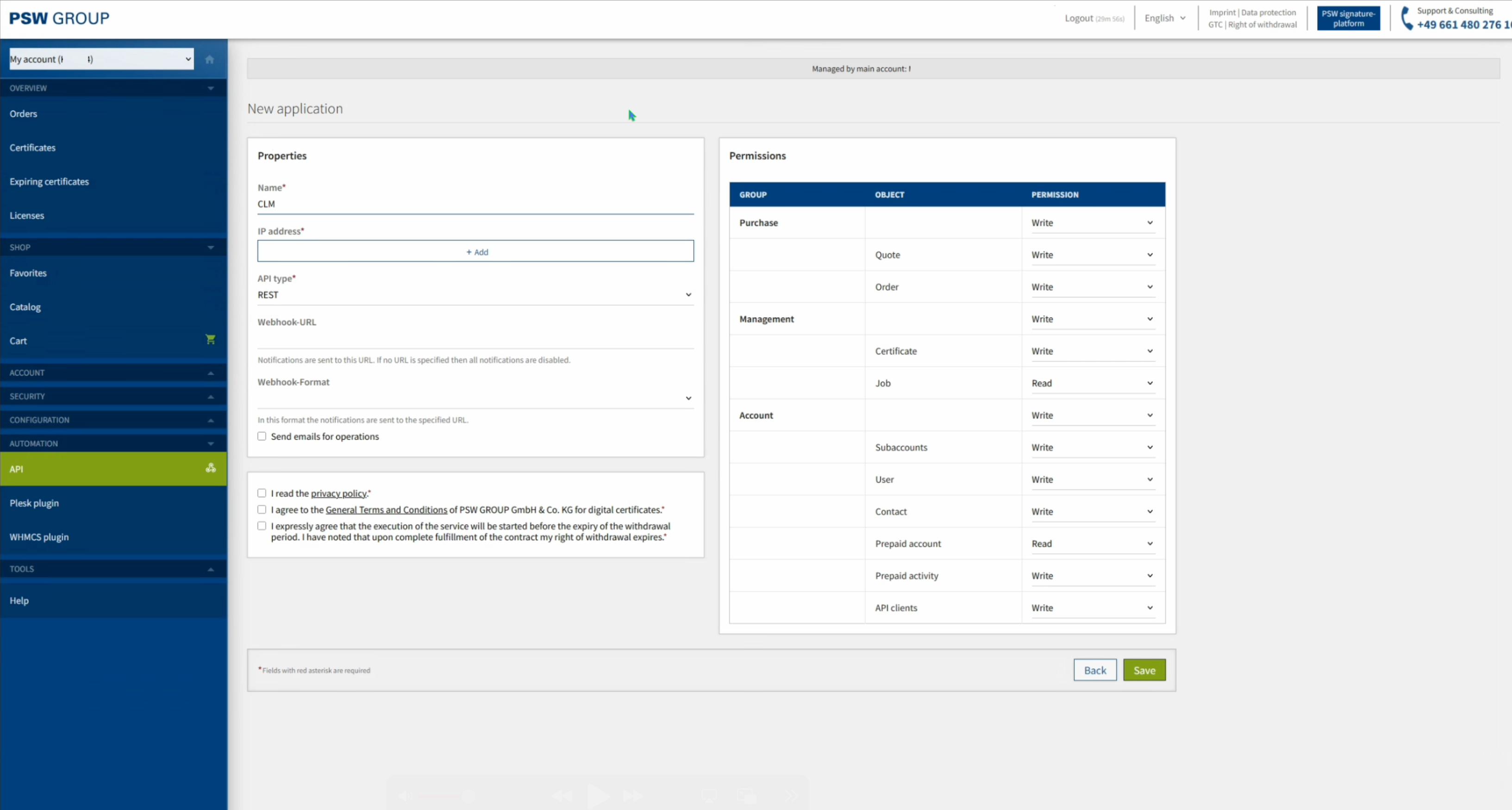
Click Save
-
Your Client ID and Secret are now ready to use.
MTG CLM Integration Steps
1. Creating a new Certificate Provider
In the Create Certificate Provider page, under Type, select PSW - Public CAs.
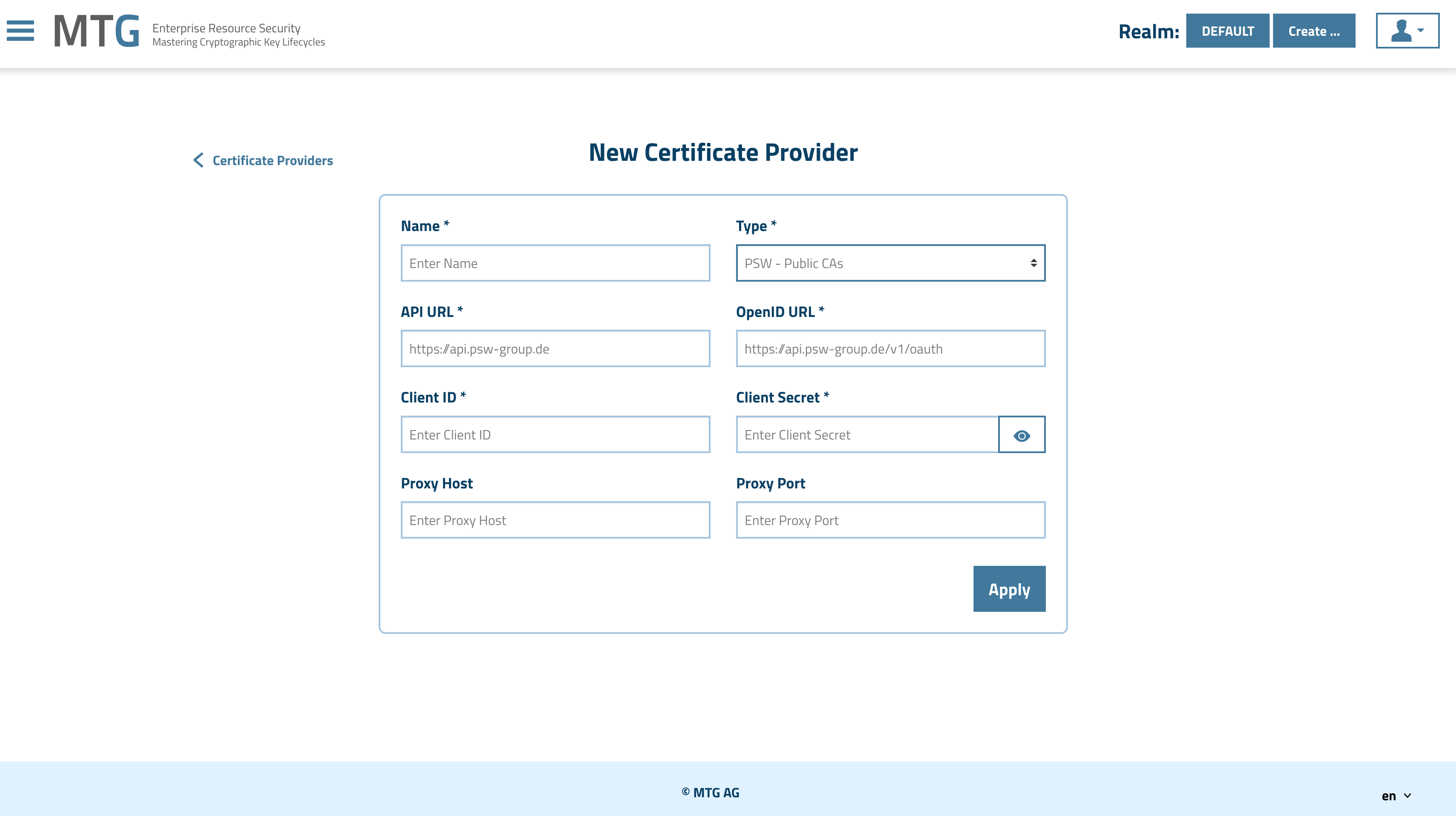
| Make sure to add the Client ID and Client Secret you created during the first part of the guide. |
2. Checking the Connection Status
In the next menu page the Connection Status should be indicated as Good.

3. Creating a Certificate
In the certificate creation wizard, create a new policy.
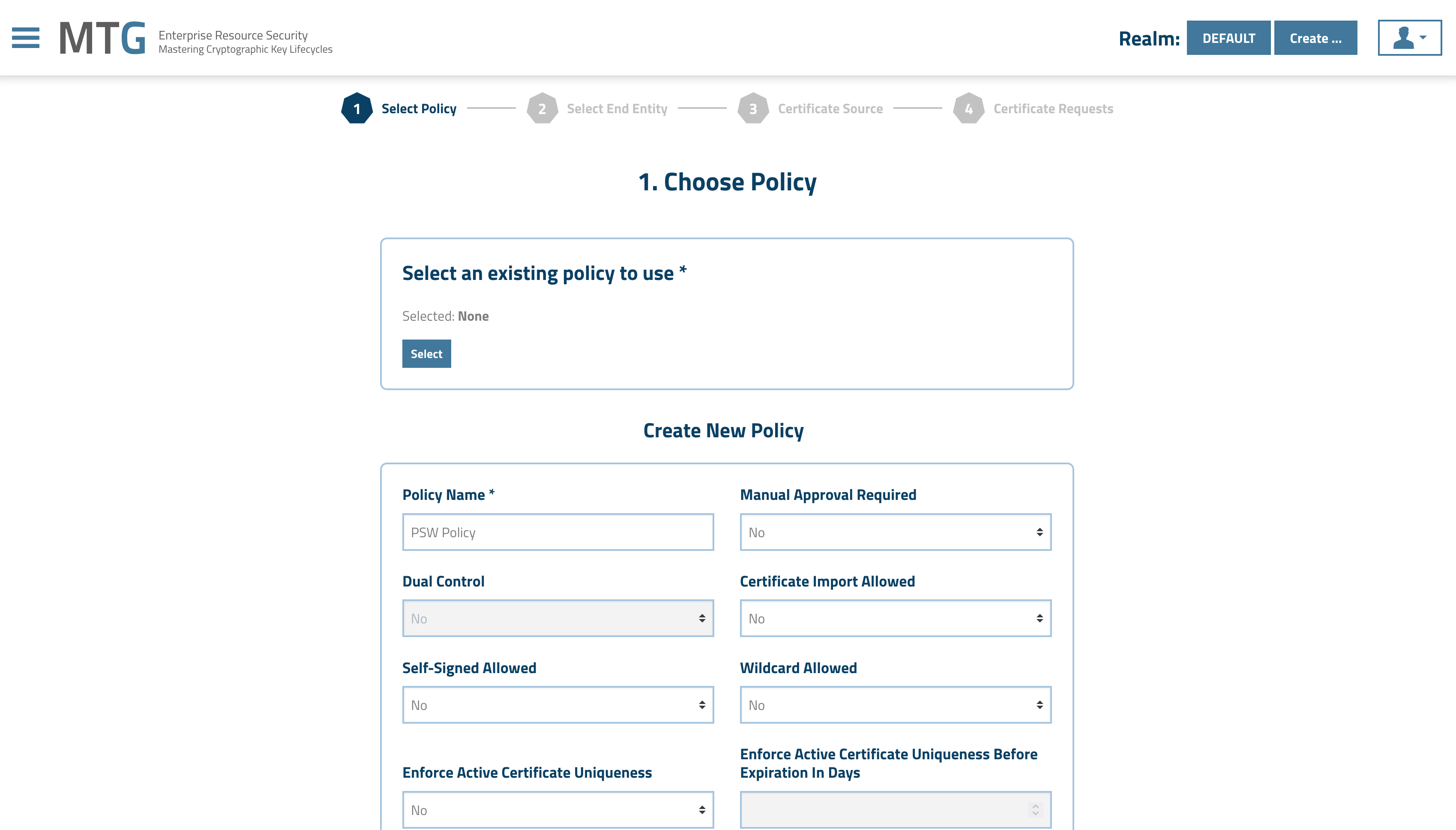
| This policy should be PSW specific and not the default one. |
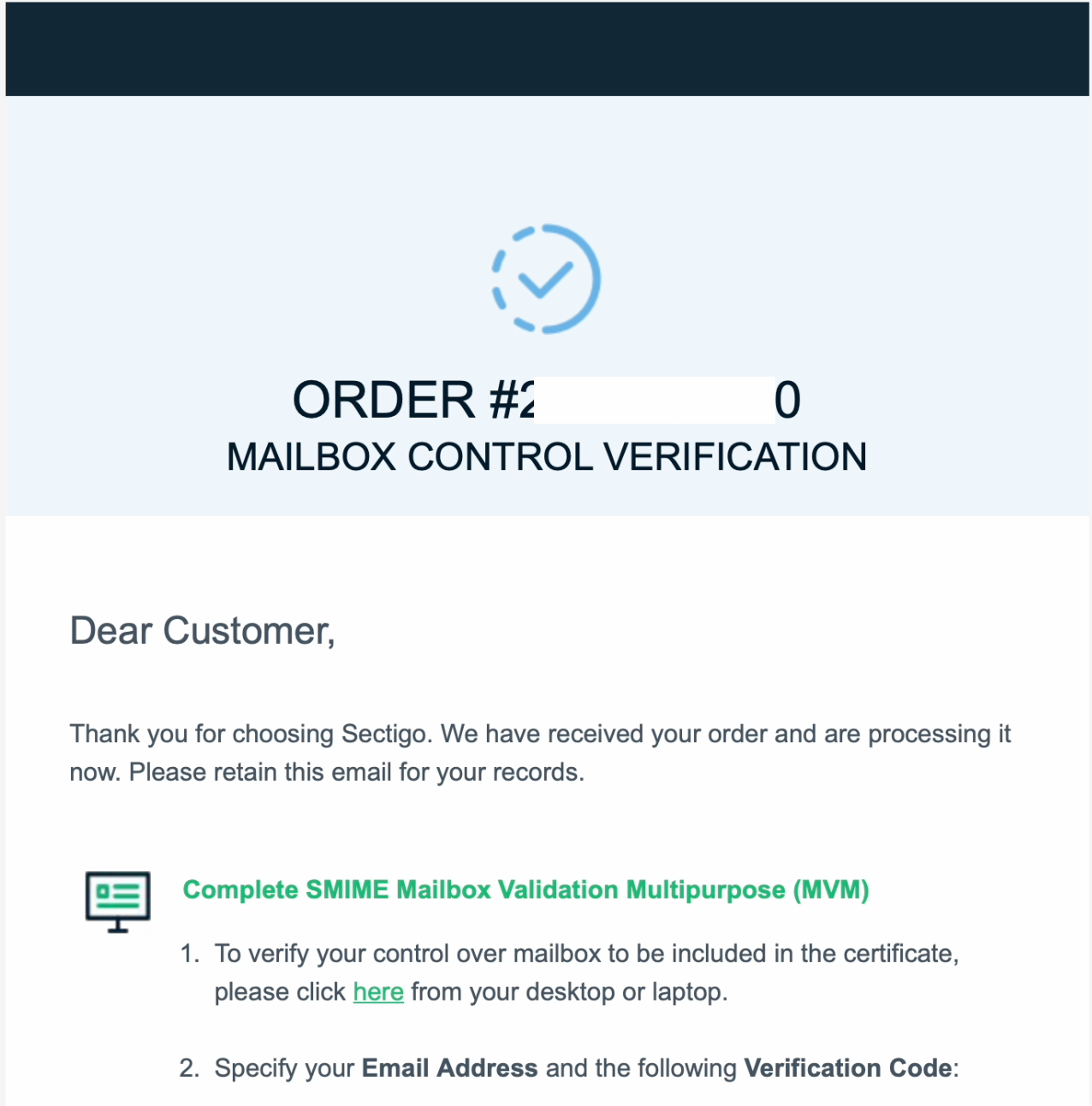
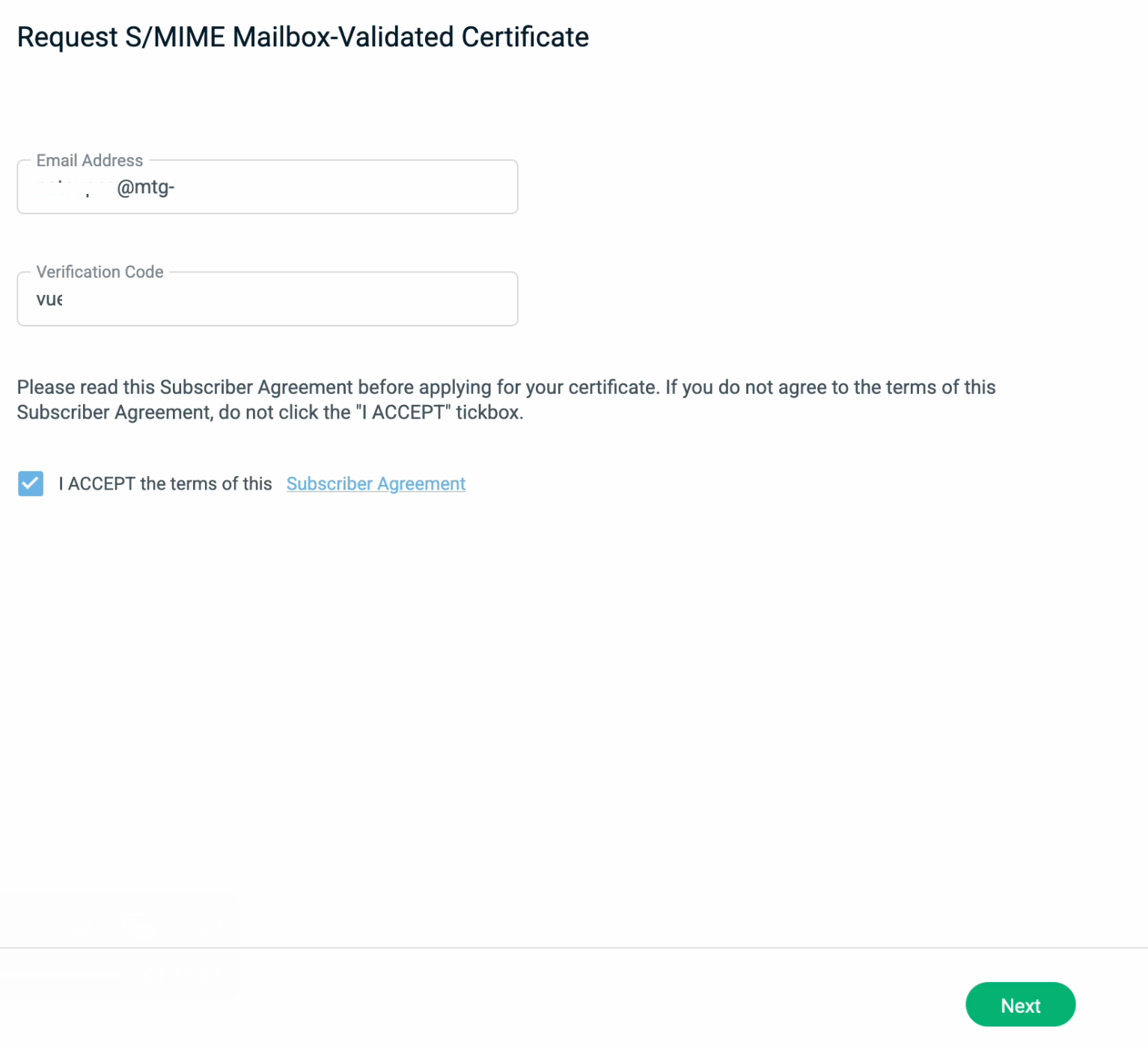
In the Certificate Provider Configuration section choose the PSW related certificate provided you created before and select the parameters according to your needs. Also, make sure you enter your e-mail address for verification purposes.
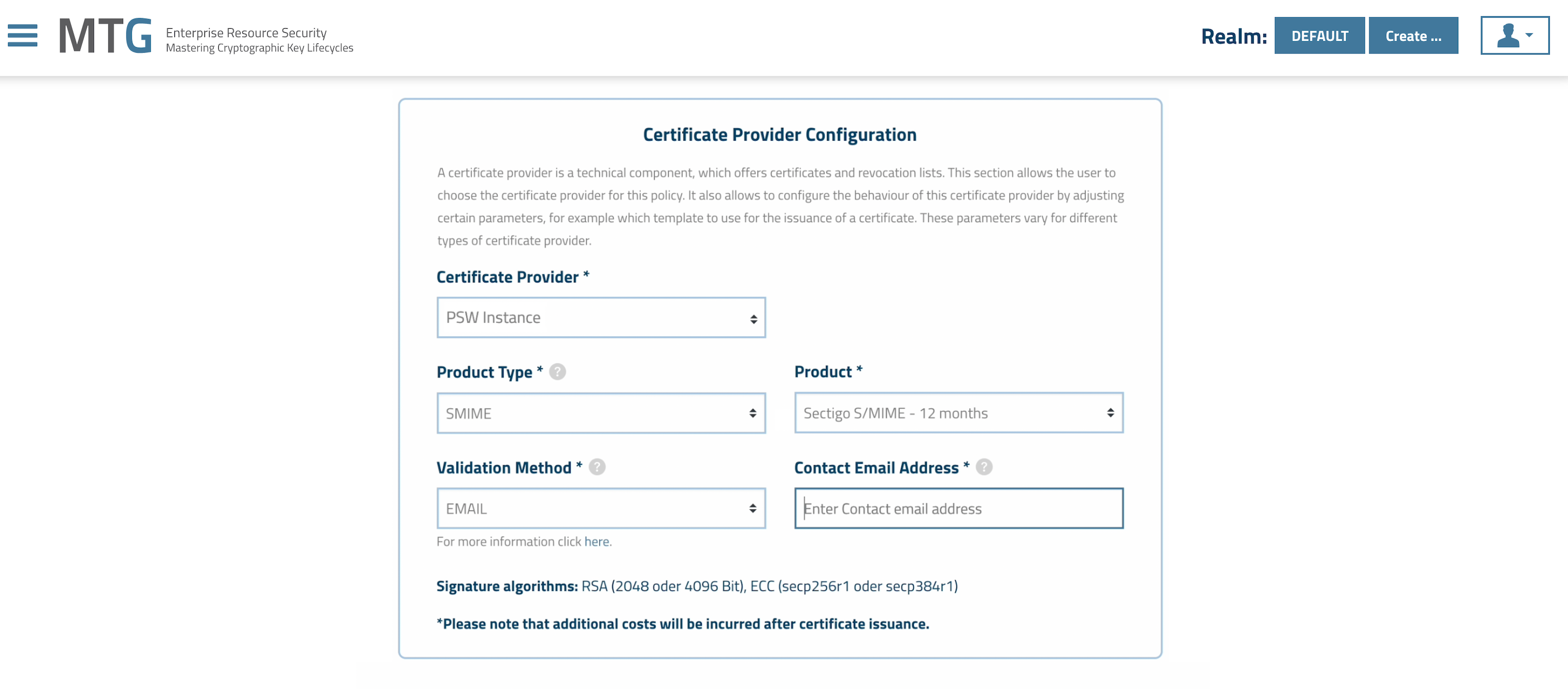
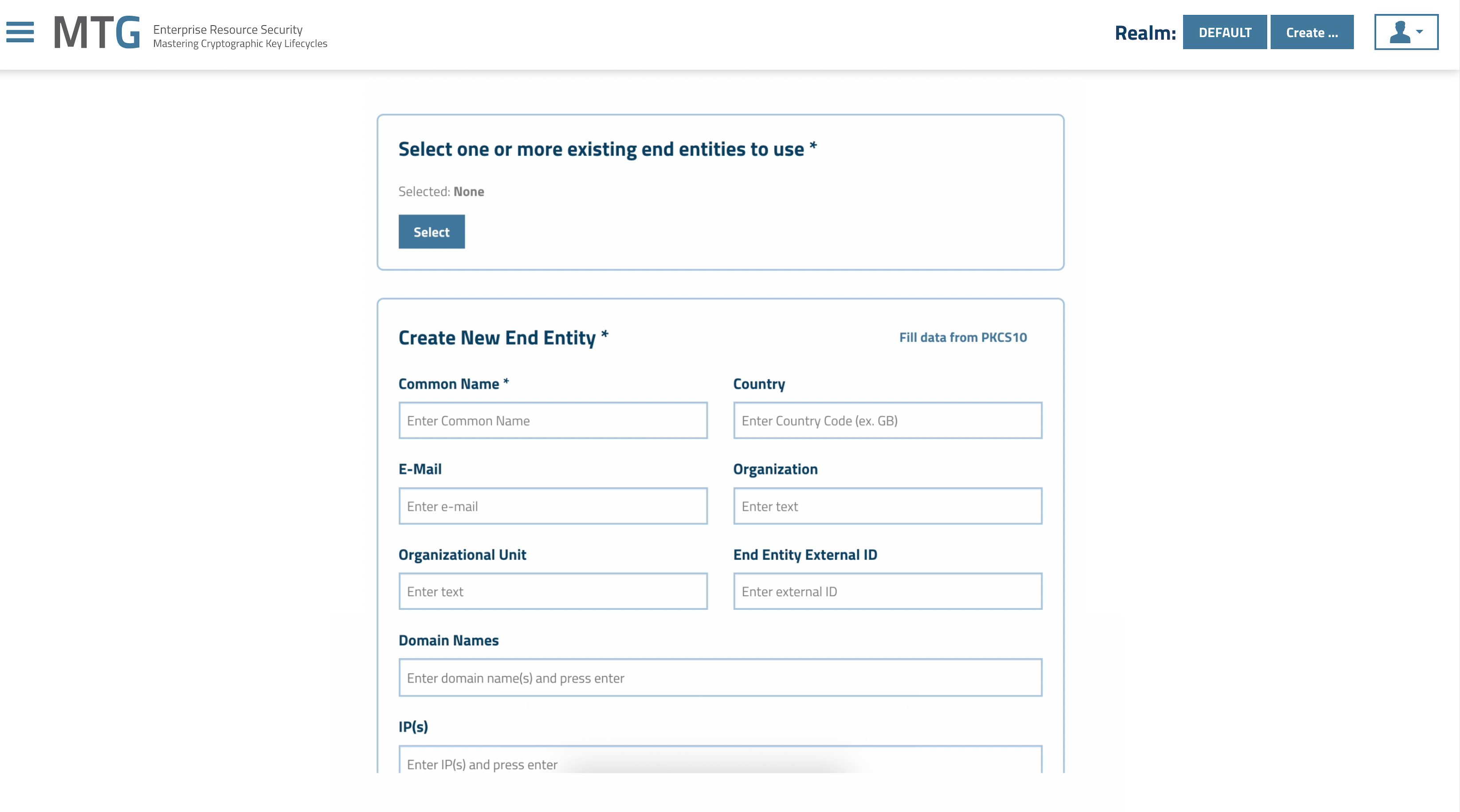
Fill in all appropriate fields.
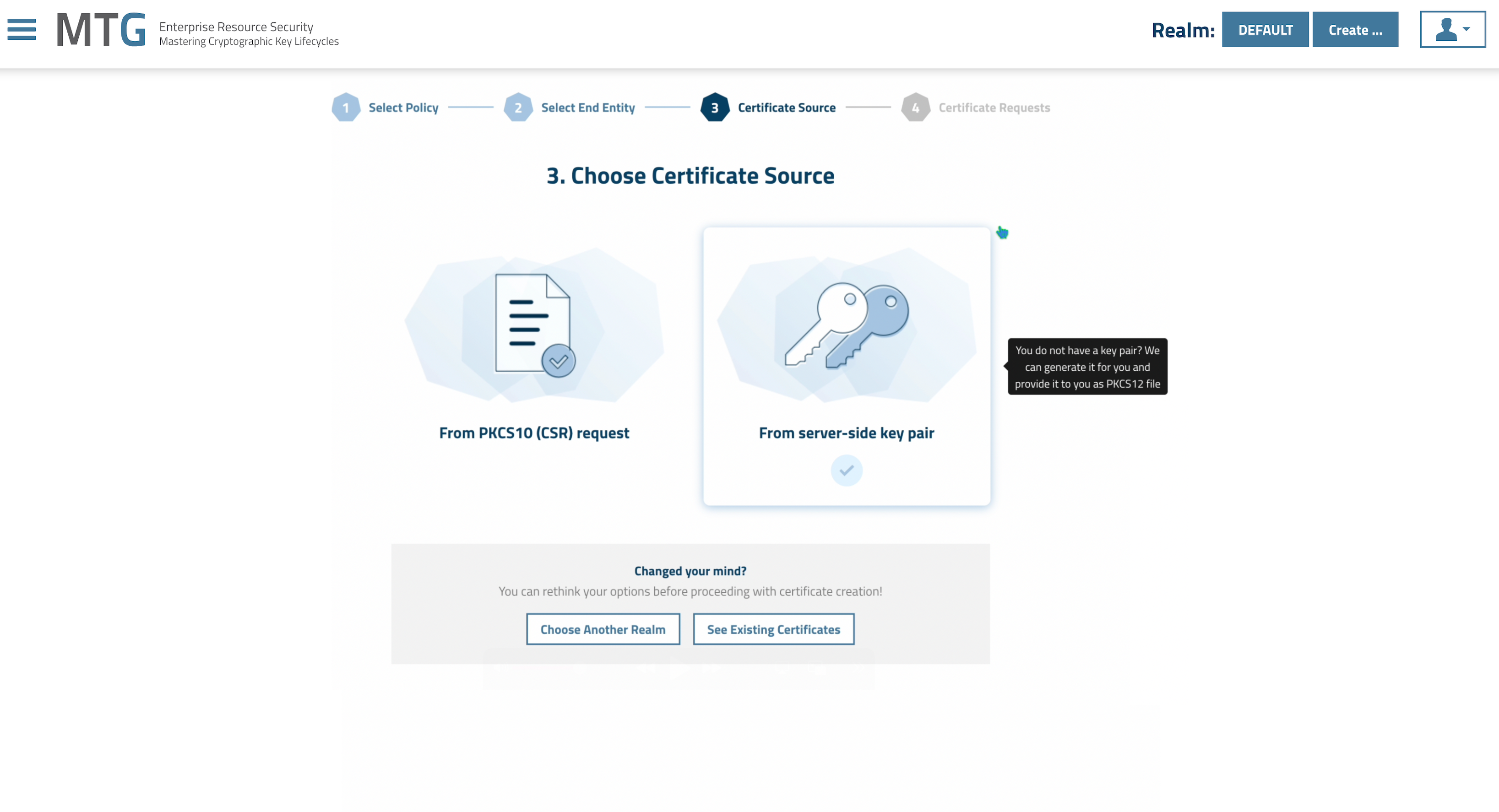
In the Choose Certificate Source menu choose From server-side key pair.
In the New Server Side Certificate Request menu select your Public Key Algorithm and click Apply to proceed.
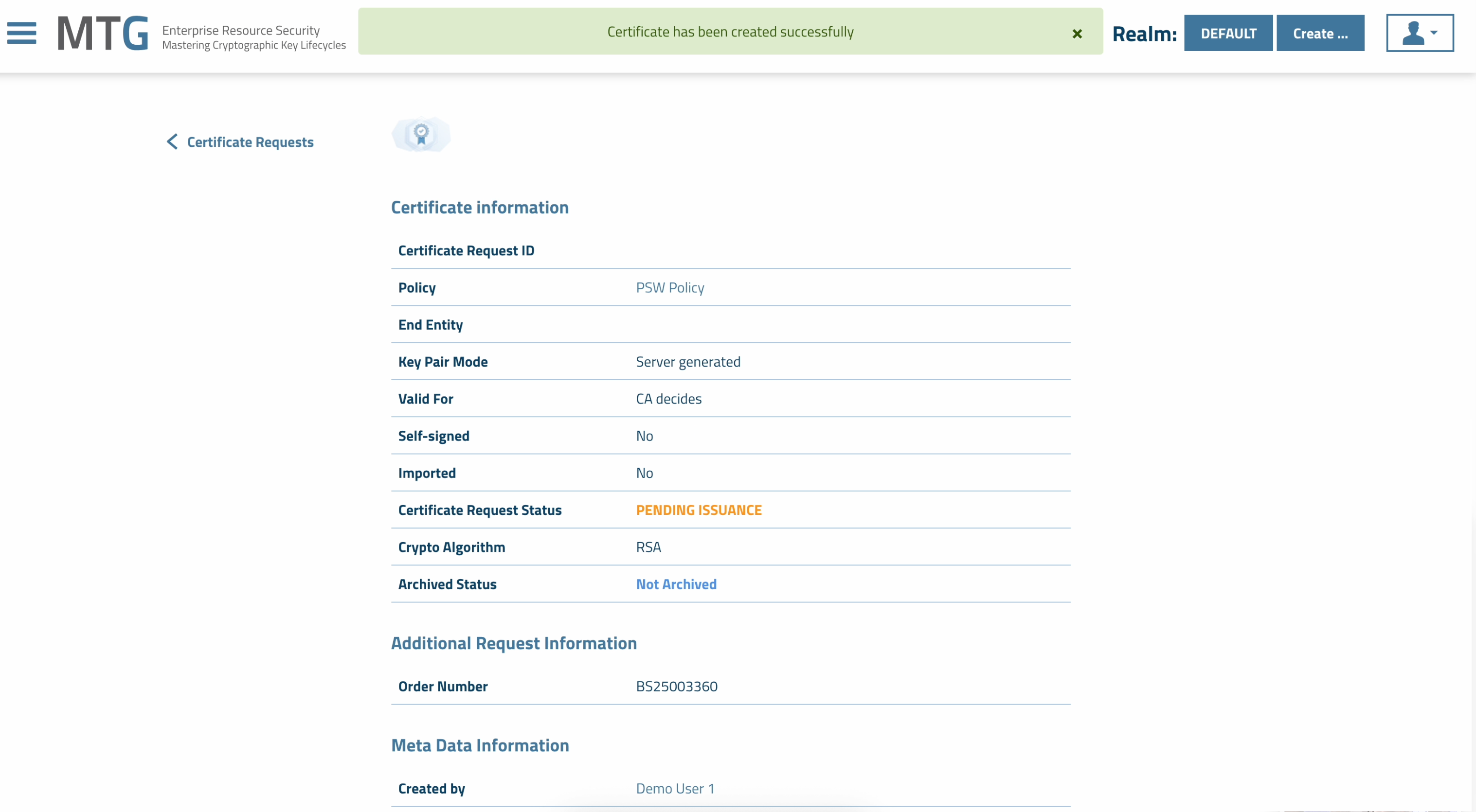
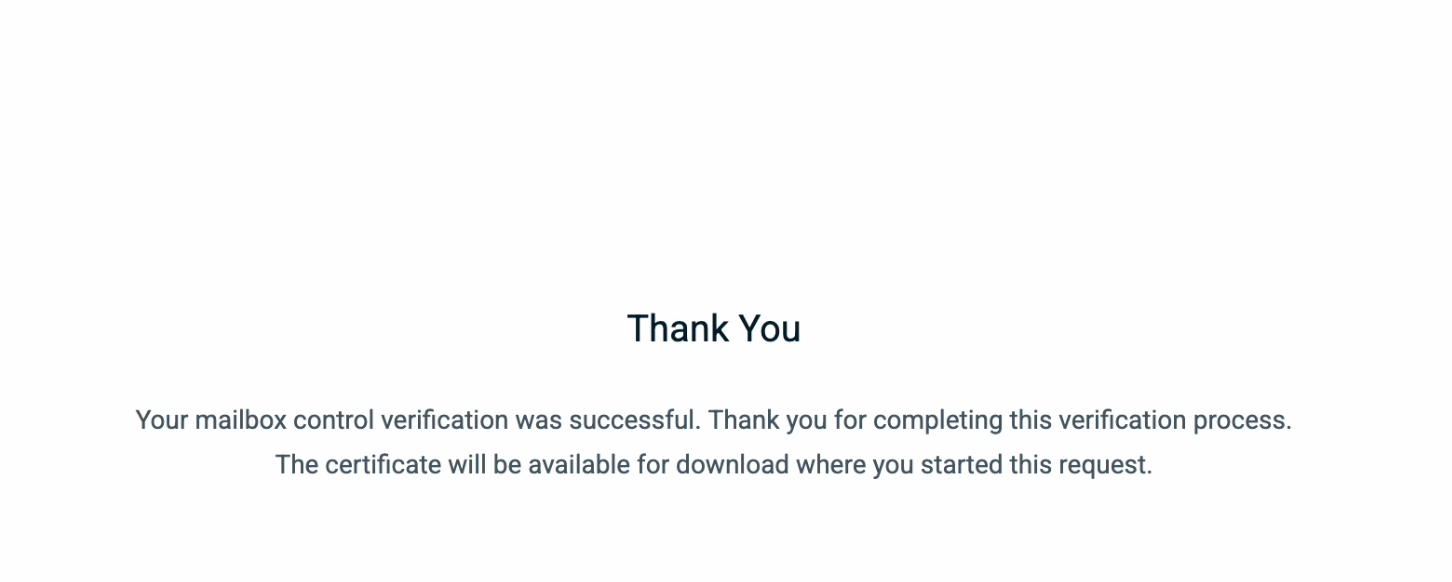
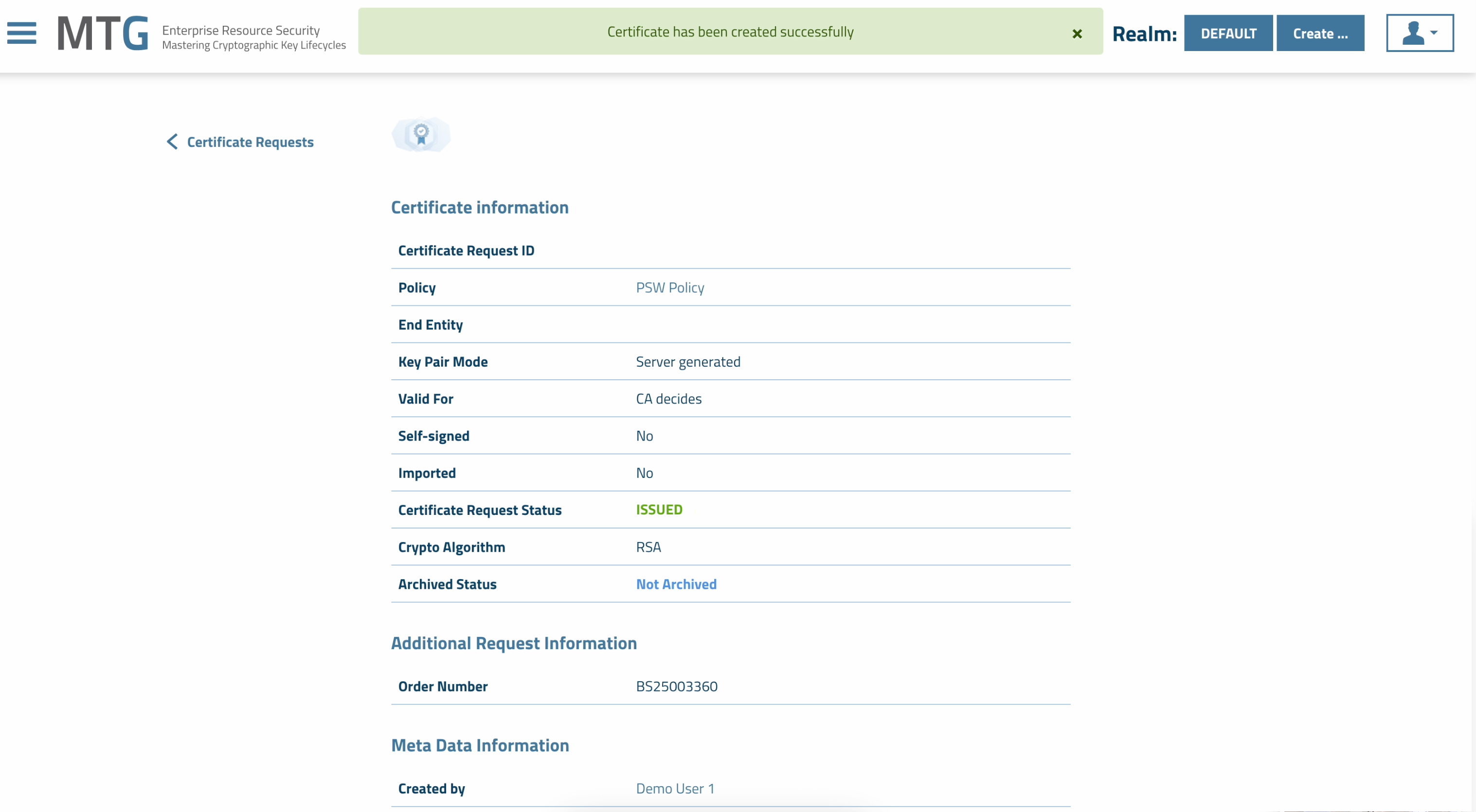
You should be now seeing a similar screen to the above, with an order number and a Certificate Request Status. MTG CLM checks regularly and updates this Status automatically.
DNS Validation
MTG CLM supports DNS CNAME validation for PSW Sectigo TLS server certificates. This validation method requires creating DNS CNAME records for your domain, in order to prove domain ownership. DNS CNAME validation enables certificate issuance for wildcard domains and scenarios where HTTP-based validation cannot be performed.
| Domain validation and other validations are still performed outside the MTG CLM platform. MTG CLM serves solely to request the certificate. For a successful certificate request, the requirements regarding validation must be met. |