Autoenrollment Connector: Prerequisites
1. Verify or Install Active Directory
If Active Directory is already present in your environment, verify it is properly configured. If not, follow the installation steps below.
|
Configure the domain name at the Example: |
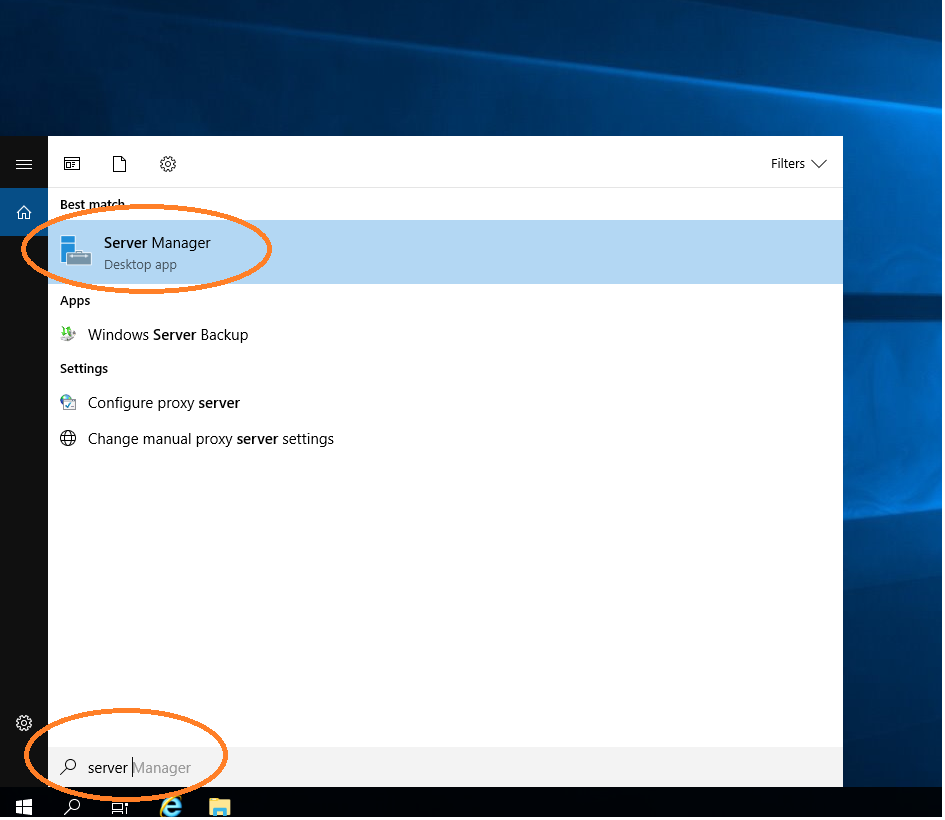
Install Active Directory Domain Services
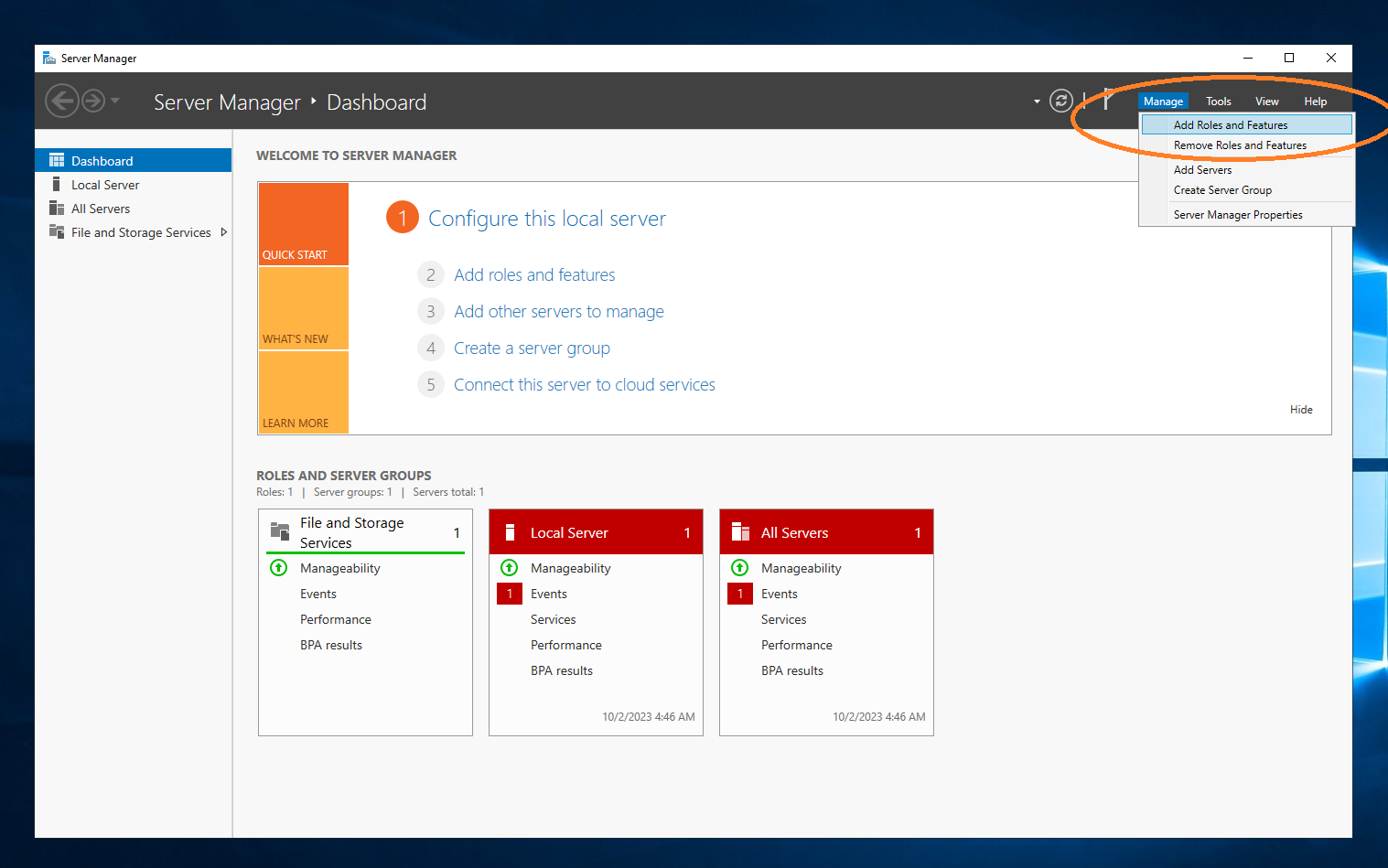
Choose Manage → Add Roles and Features.
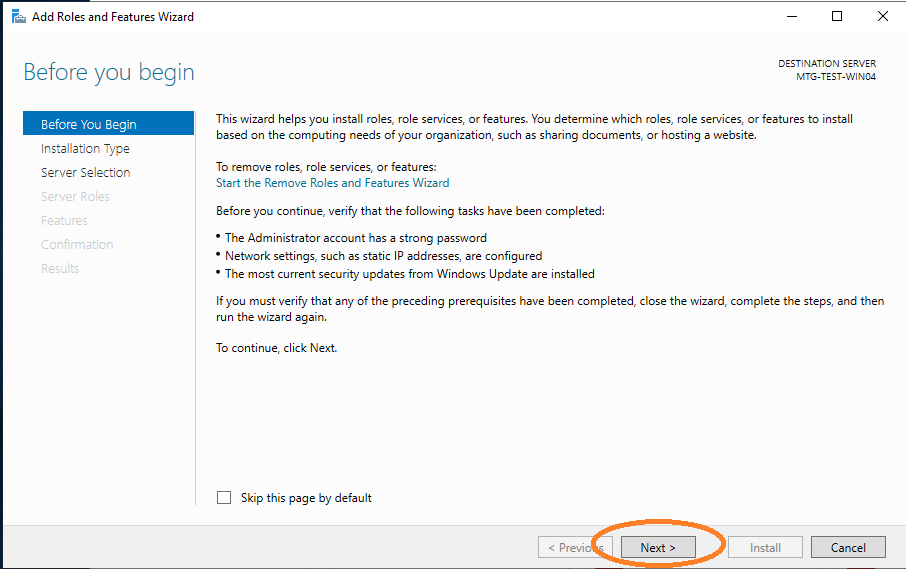
A configuration wizard will start.
The first page of the wizard is shown. Click Next.
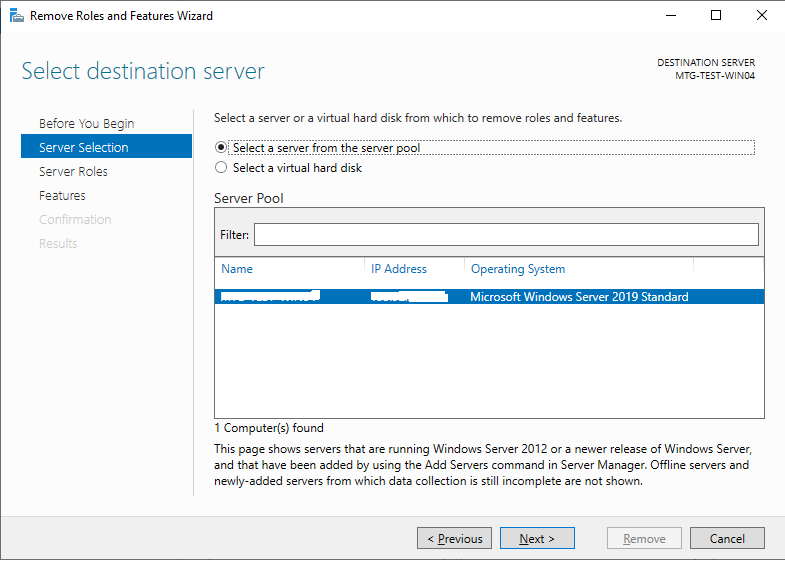
Choose the server where Active Directory should be installed.
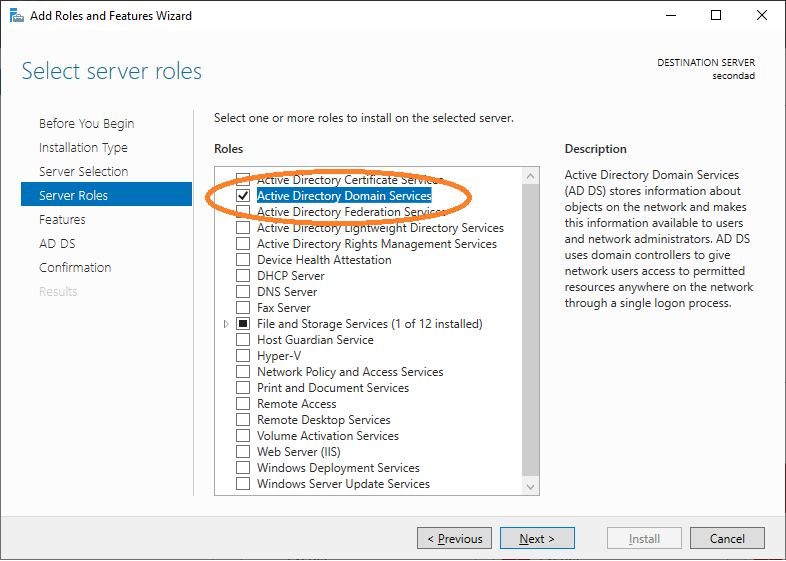
Choose the corresponding services for Active Directory.
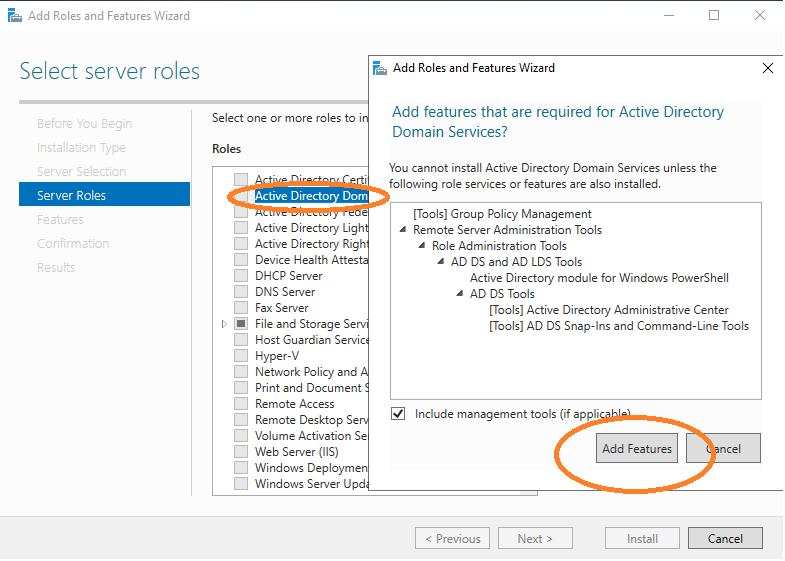
The Add Features window will appear. Click Add Features.
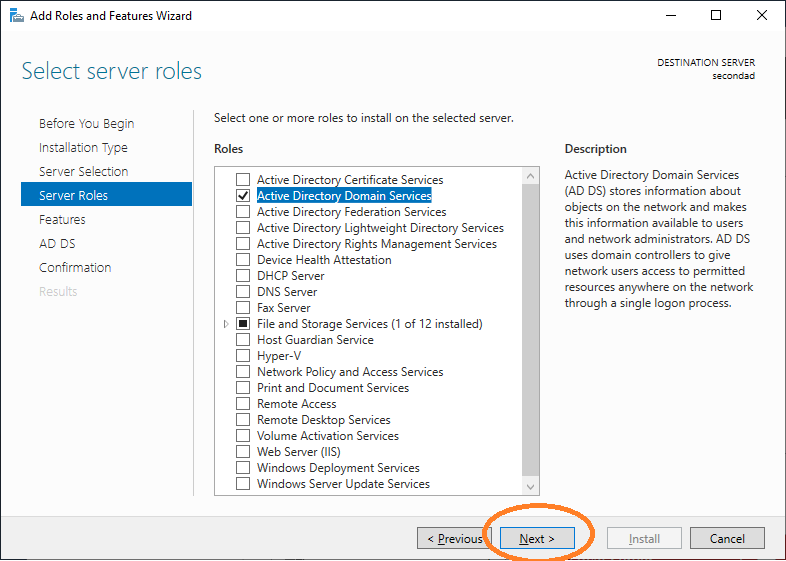
Click Next.
If it is not activated, activate Group Policy Management.
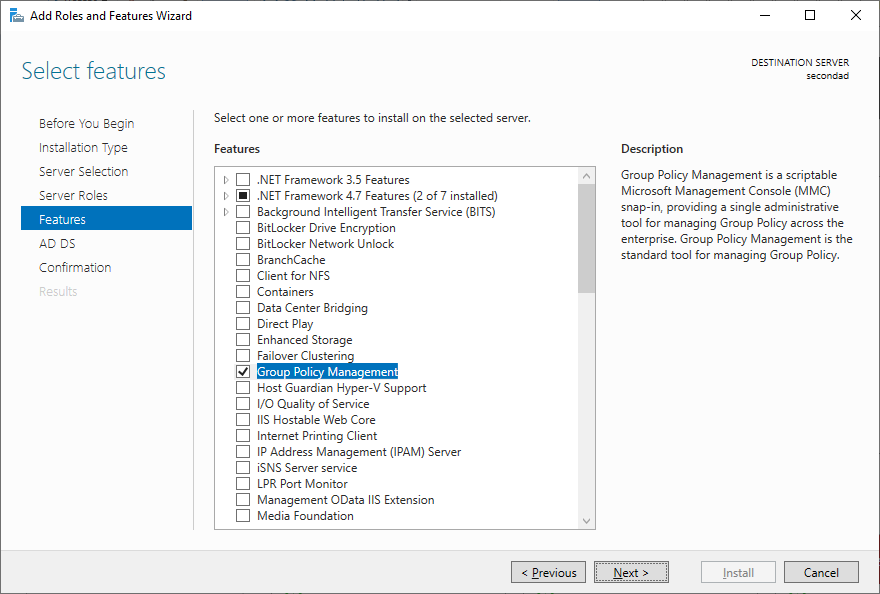
Click Next.
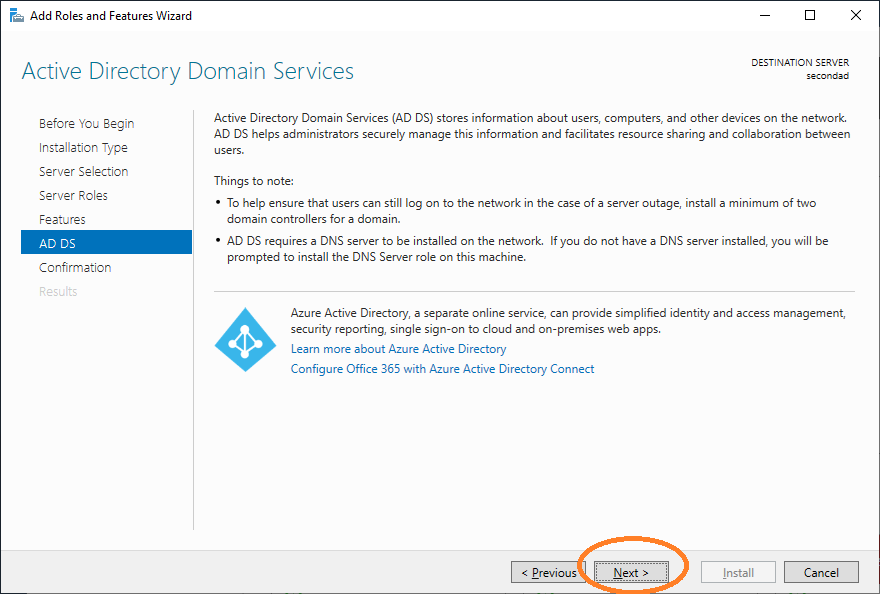
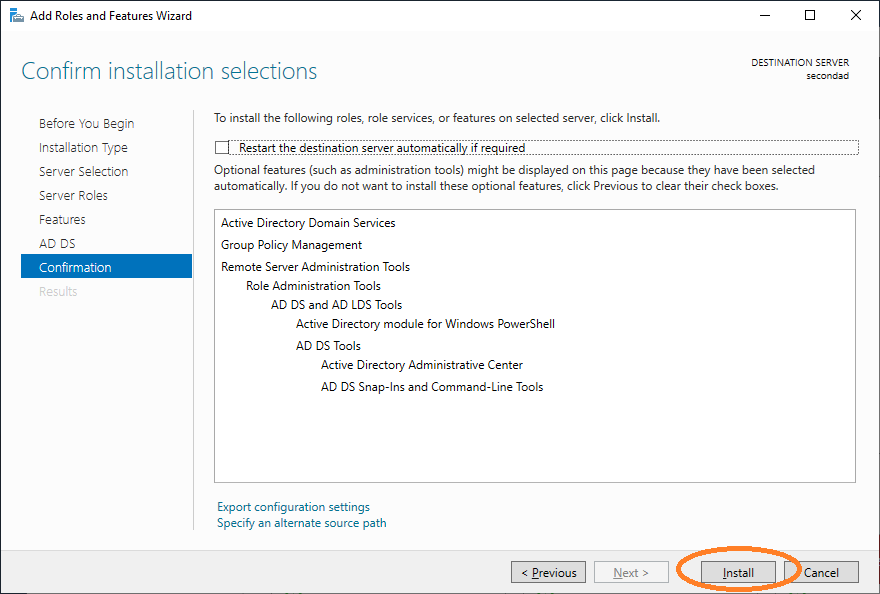
Click Install.
Close the dialog after successful installation.
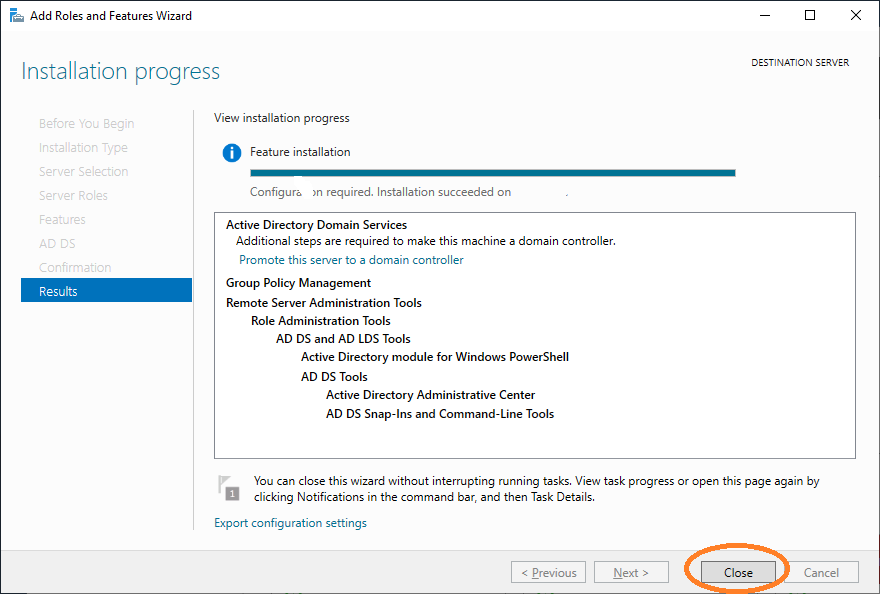
Promote to Domain Controller
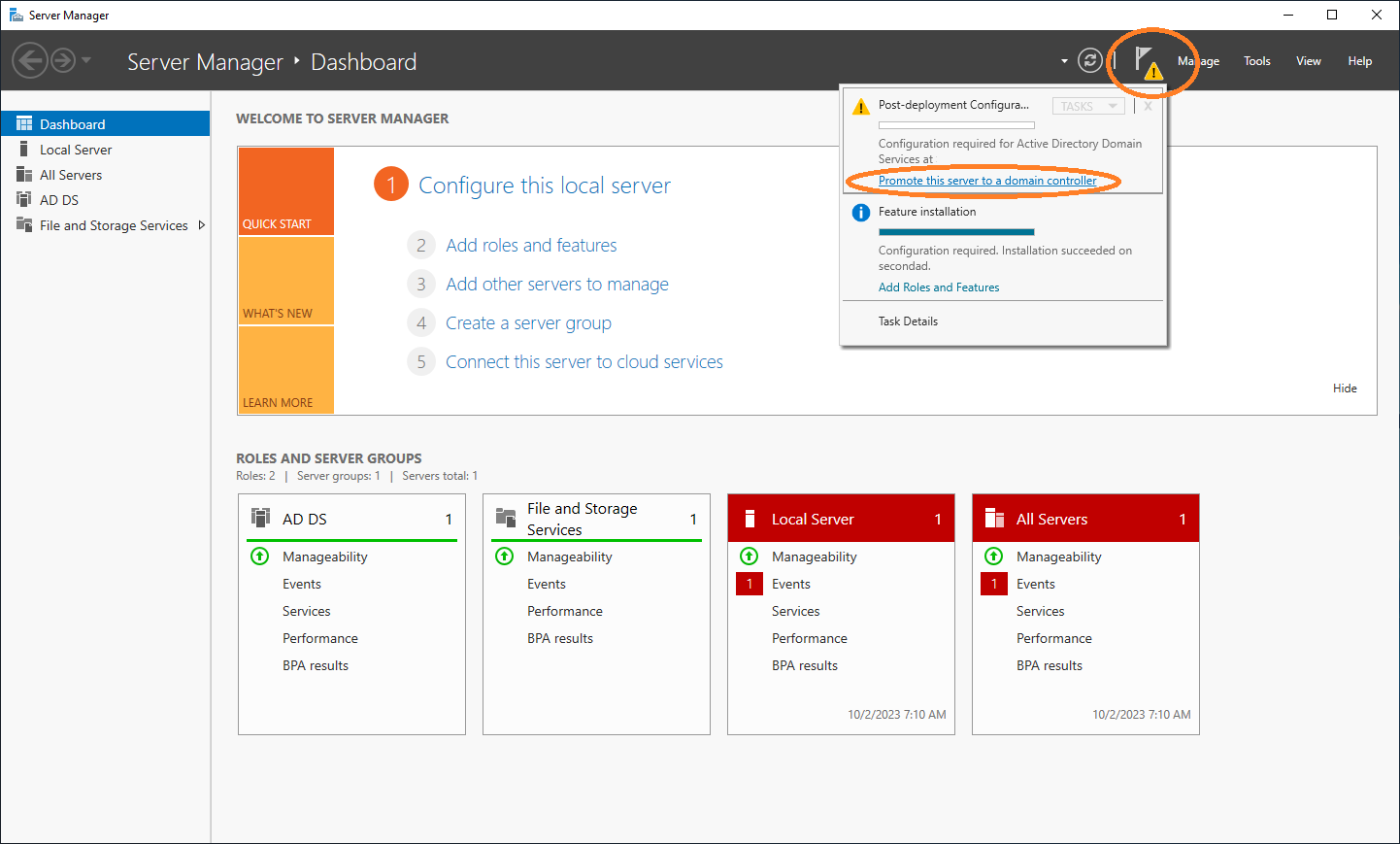
You can promote the server to a domain controller. To do this, select Notifications → Promote this server to a domain controller.
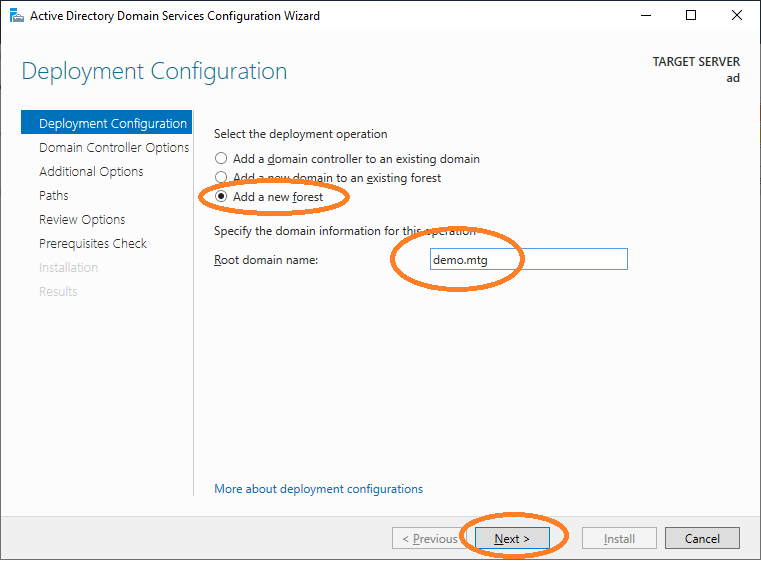
Choose Add a new forest and provide the root domain name (in this example demo.mtg).
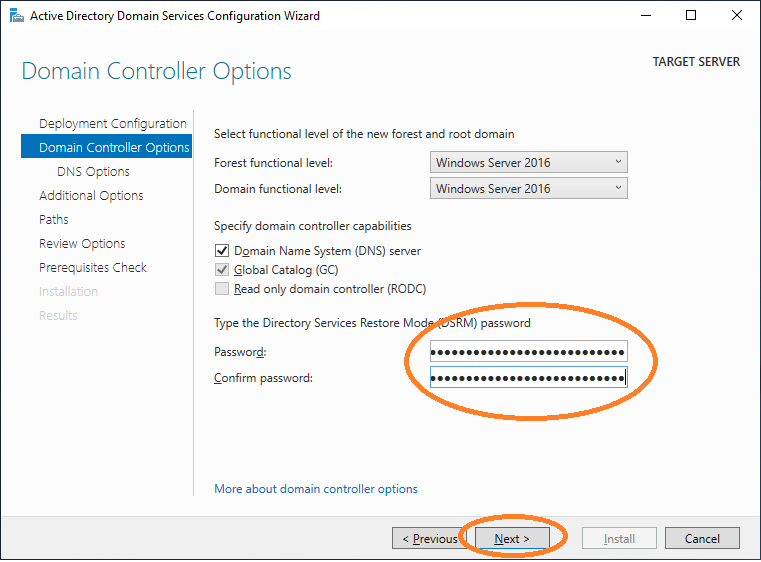
Provide a password and click Next.
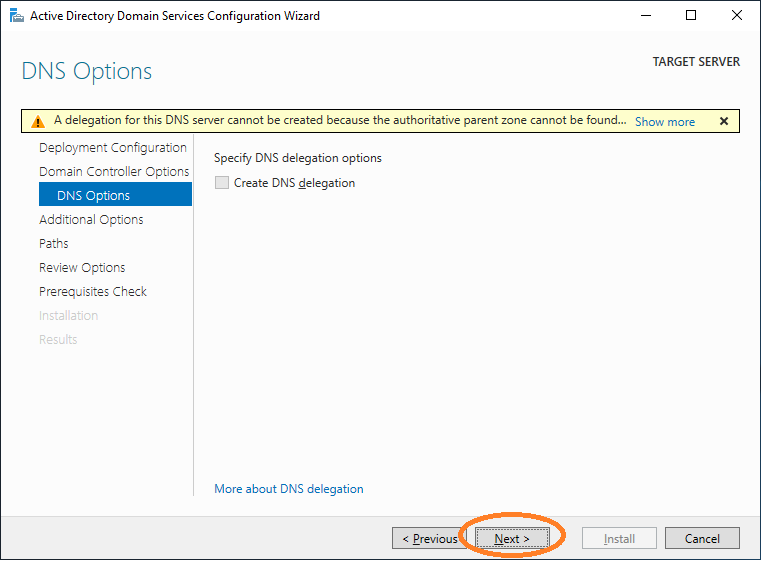
Proceed with the wizard.
Wait for the NetBIOS name to be resolved.
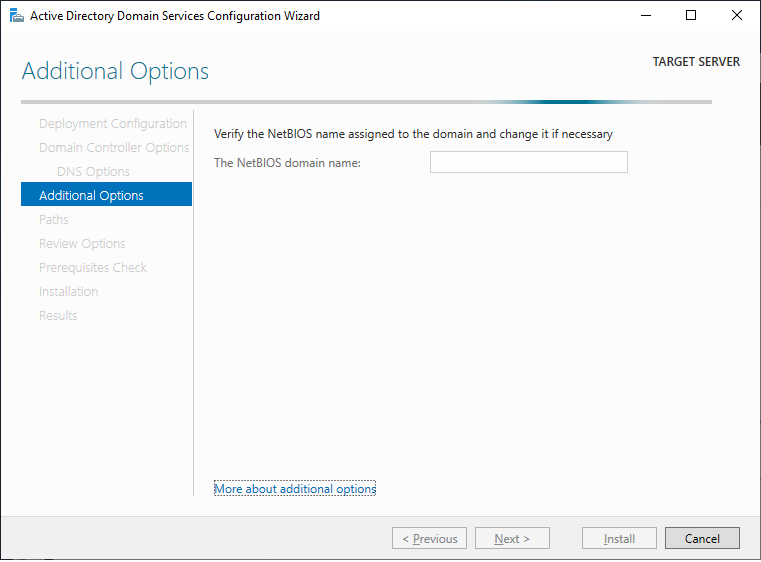
Provide the NetBIOS domain name.
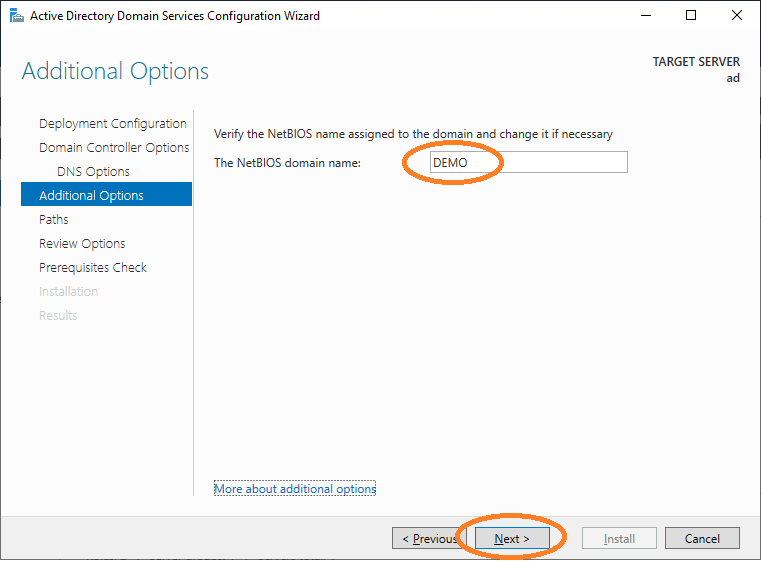
Proceed with the wizard.
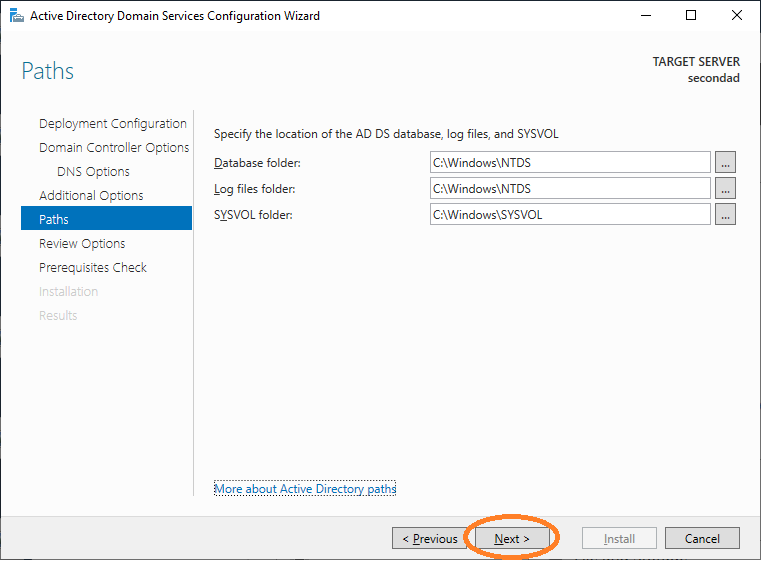
Proceed with the wizard.
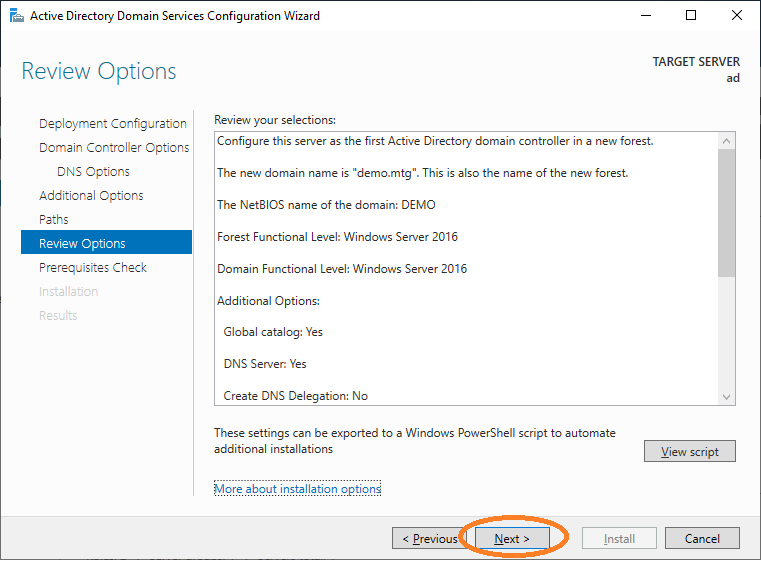
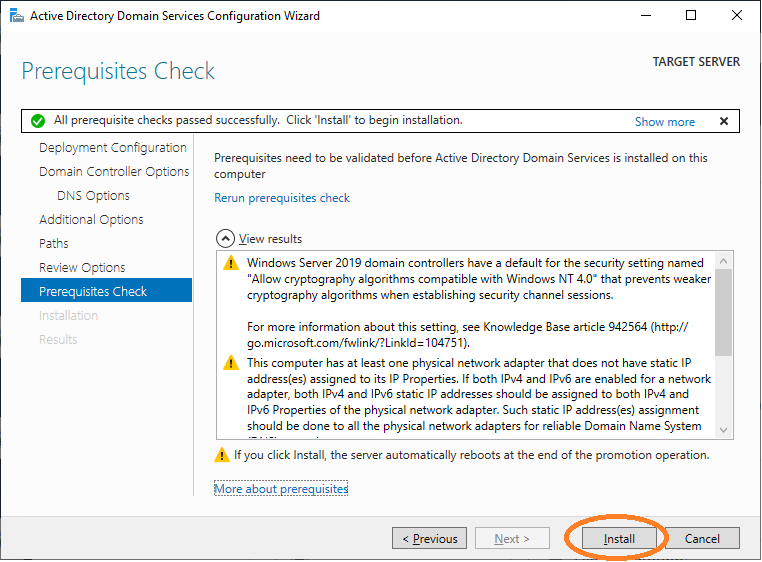
Finish the installation. Your system will then restart.
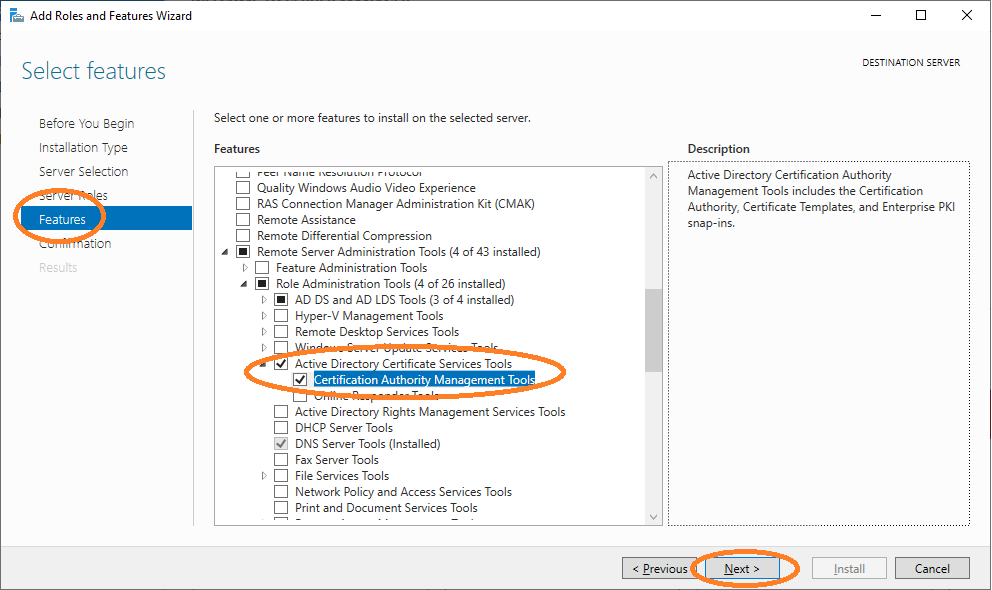
2. Configure TLS for LDAP
For several security mechanisms to function properly, TLS must be active on LDAP.
Verify LDAP Connectivity
Check that AD as an LDAP directory is running.
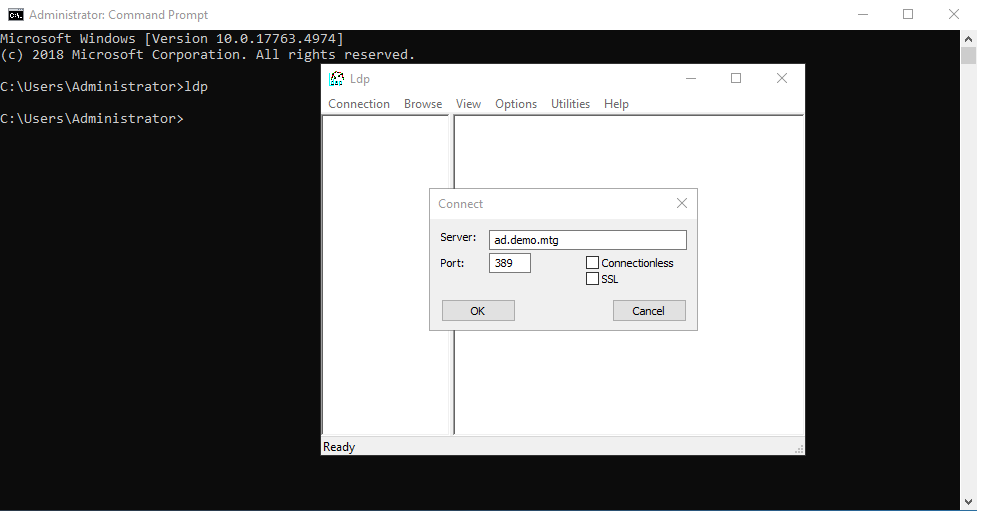
To do this, open a cmd window and run ldp.
Provide the domain of the server and 389 as a port (389 is the default port of LDAP).
A connection should be established.
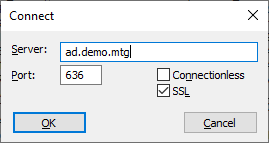
Trying the same for port 636 with SSL checked will fail (before configuration).
Import Certificates for TLS
Copy the root CA and sub CA certificate on the server and a PKCS12 file containing the keys and certificates of the Active Directory server.
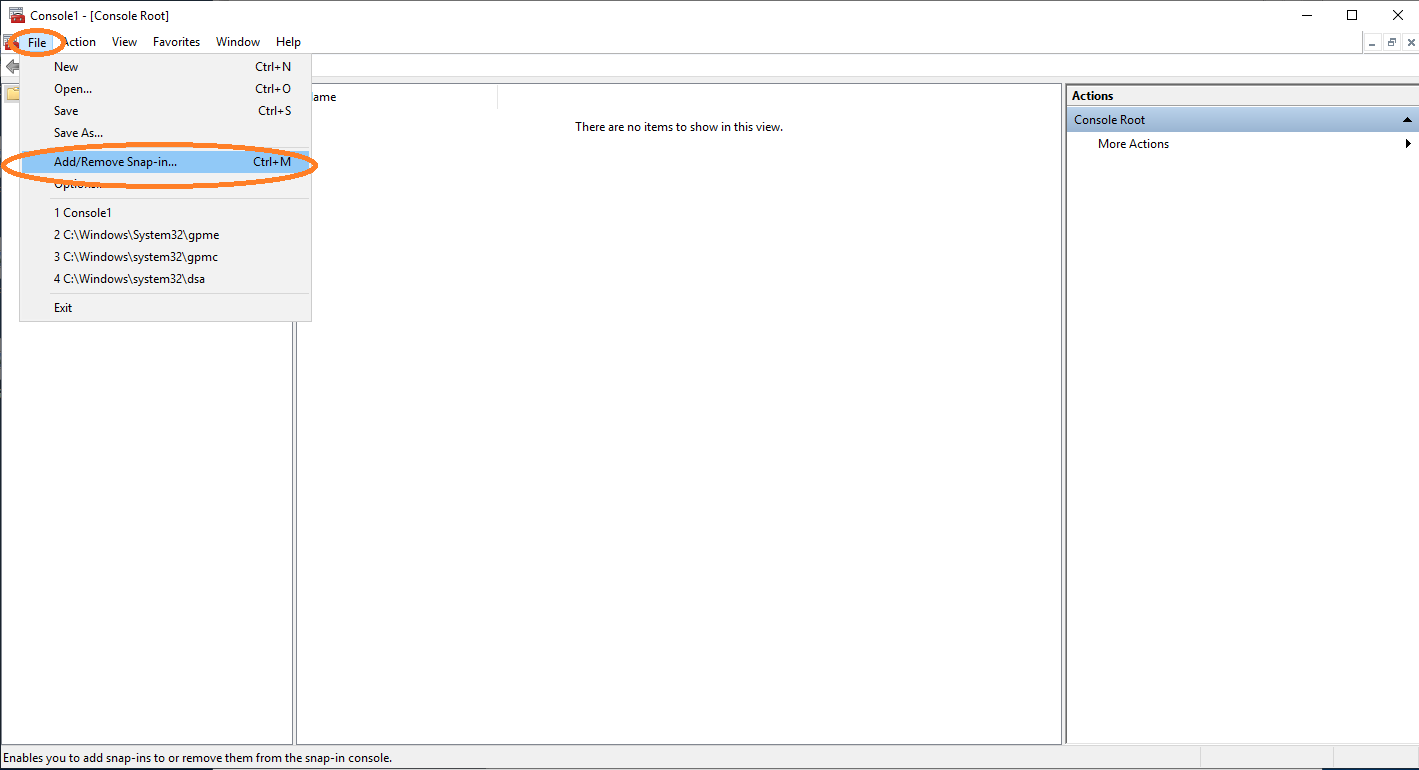
Open cmd and type mmc to get the Microsoft Management Console. Click File and Add/Remove Snap-in….
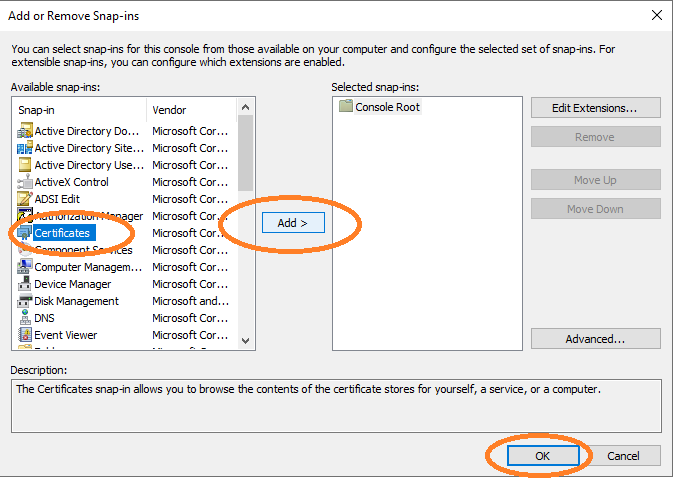
Select Certificates, click Add, and then click OK.
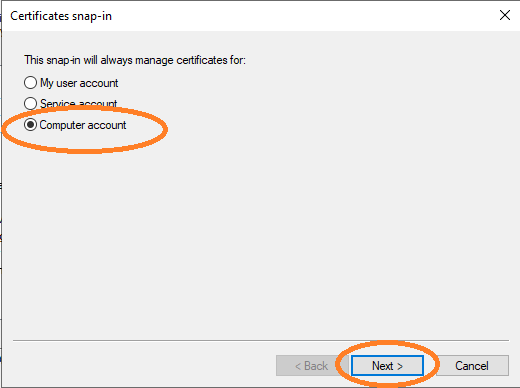
Choose Computer account and click Next.
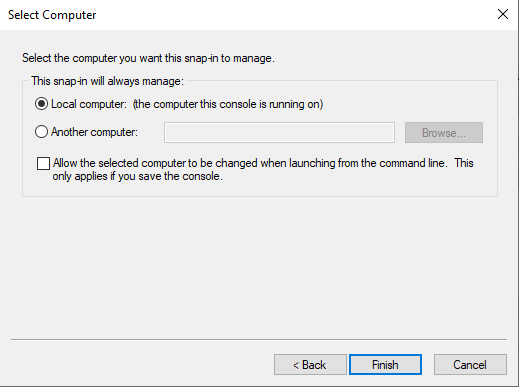
Choose Local computer and then Finish.
Import the root CA certificate under Trusted Root Certification Authorities. After adding the root, also add the sub CA certificate under Intermediate Certification Authorities.
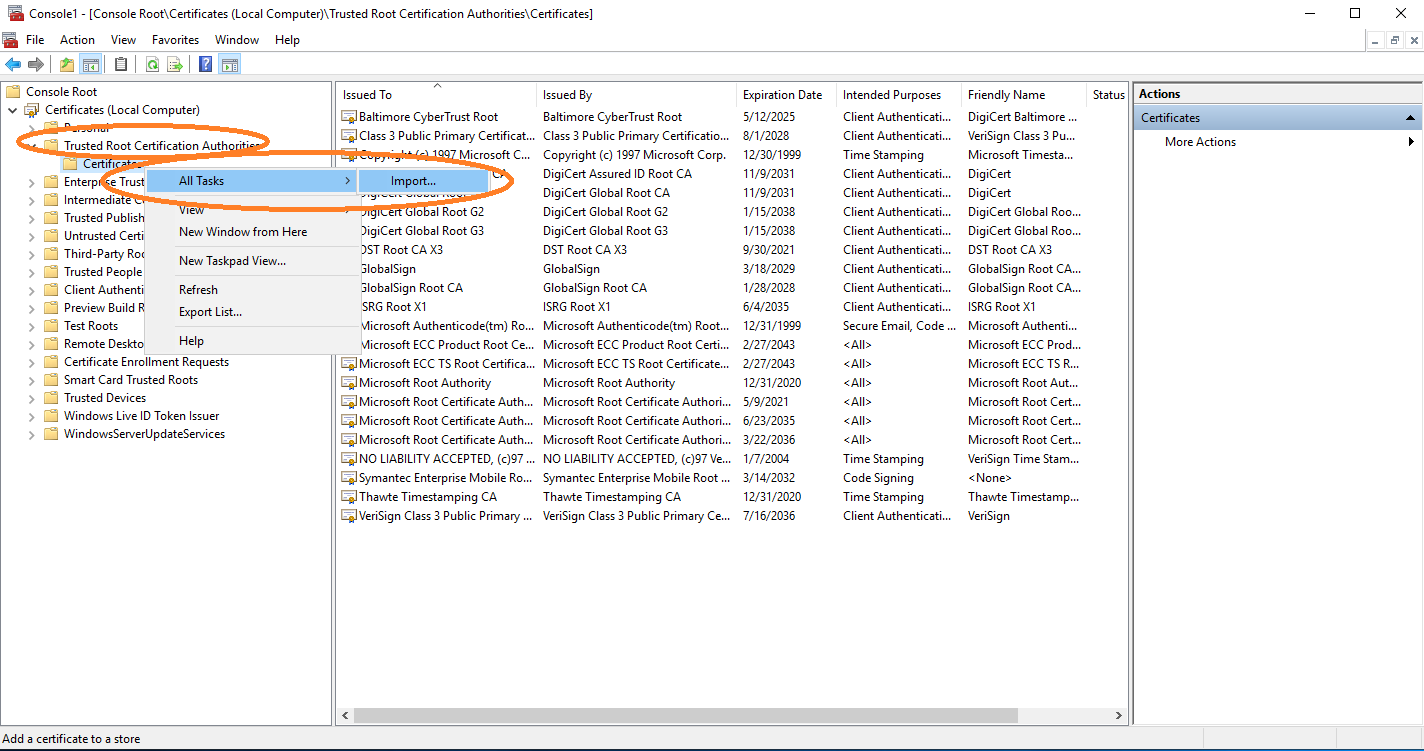
Finally, import the private keys and certificates of the Active Directory server under Personal.
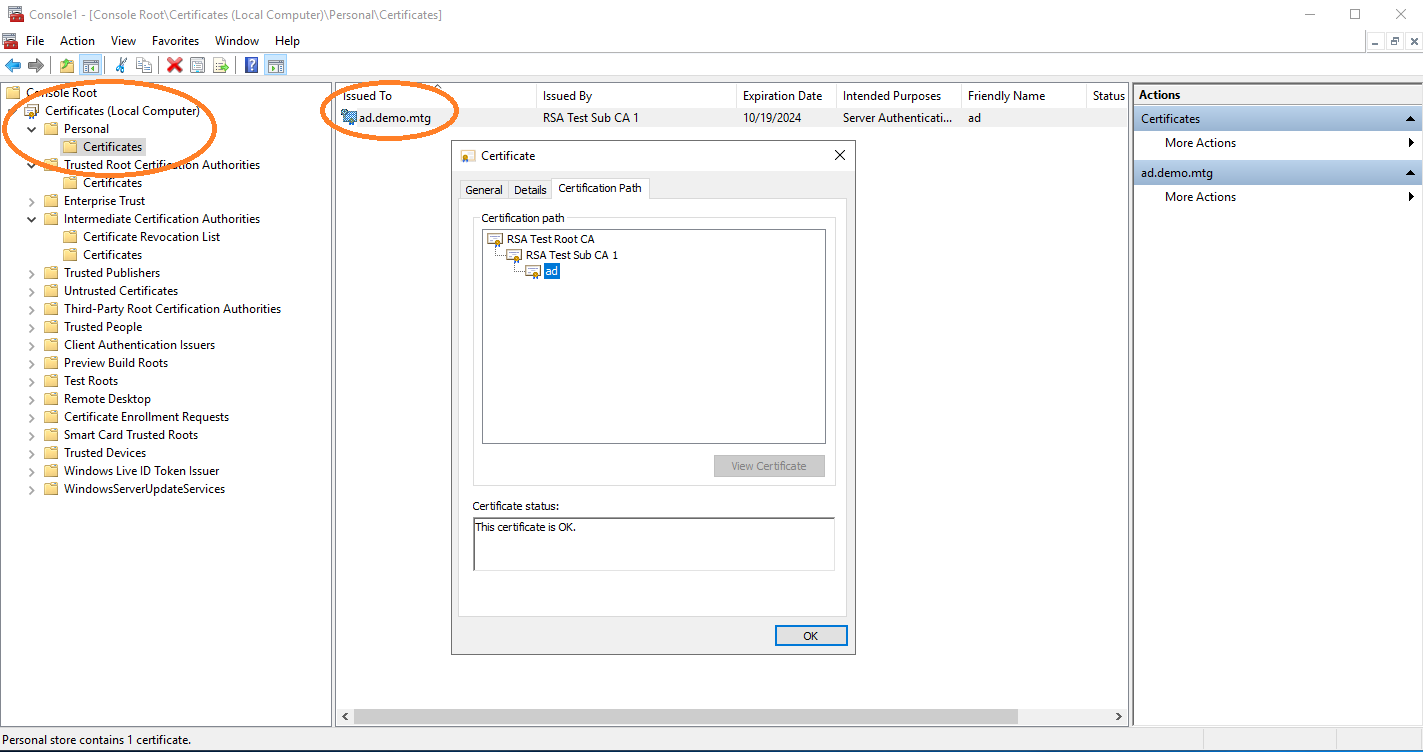
You should now be able to connect to LDAP over TLS (port 636 with SSL enabled).