|
For the latest version, please use Certificate Lifecycle Manager 6.17.0! |
Active Directory Integration
This section describes the process of integrating MTG CLM with Active Directory.
Selecting the MTG-ERS Realm
-
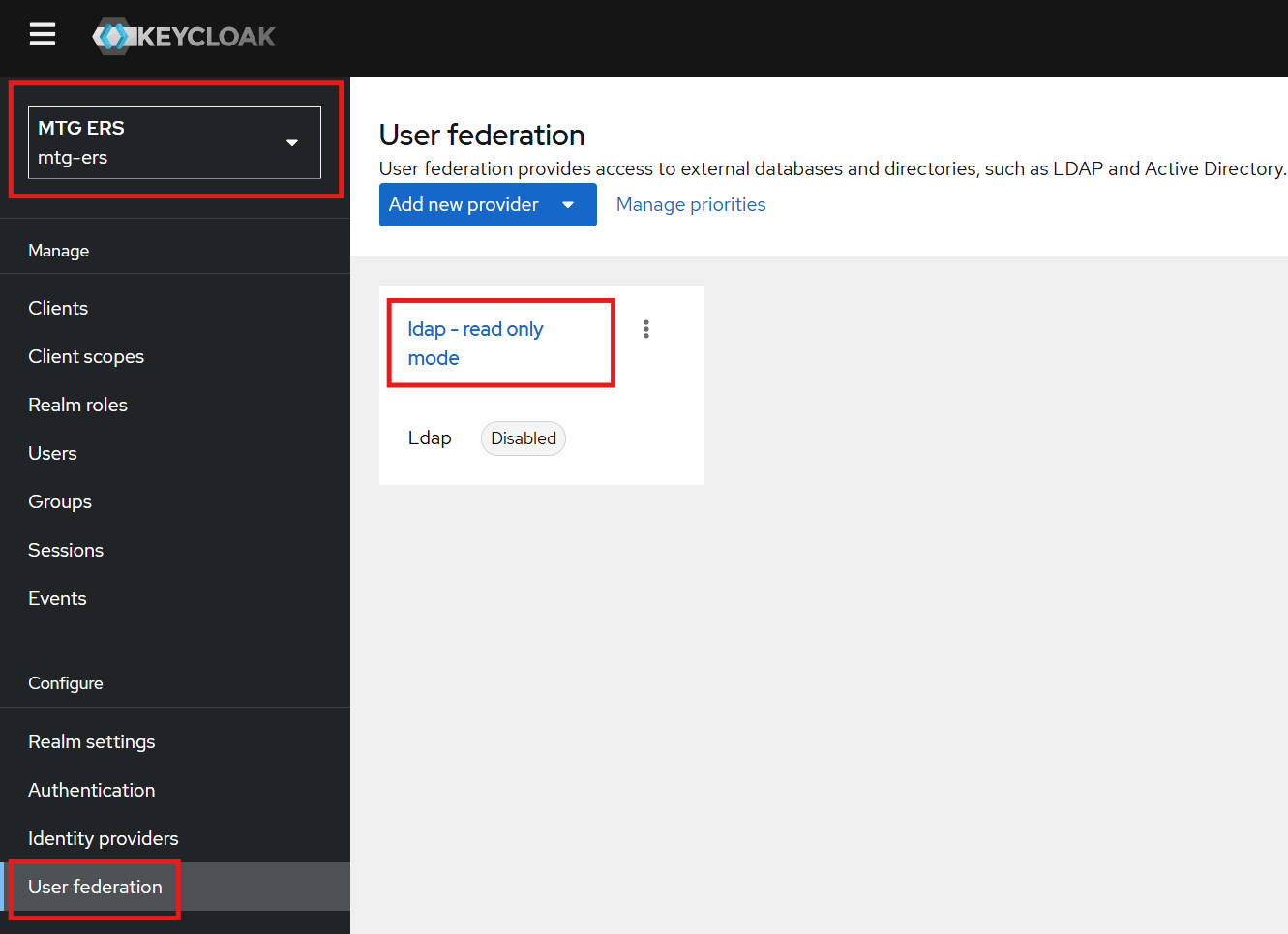
From the top-left corner, select the
MTG-ERSrealm.
Accessing User Federation
-
Navigate to the left sidebar menu and select
User Federationas shown below:
Enabling the LDAP Provider
-
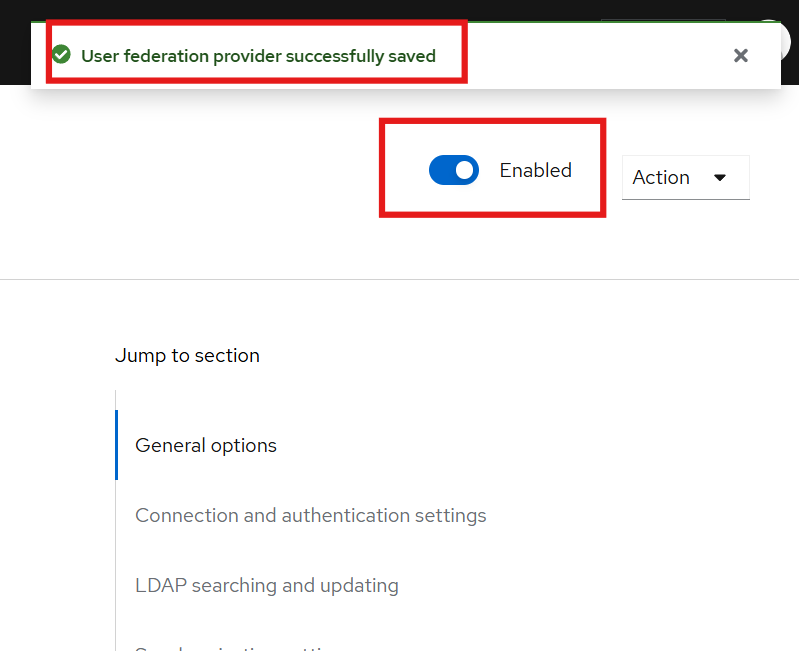
Click on the existing LDAP provider.
-
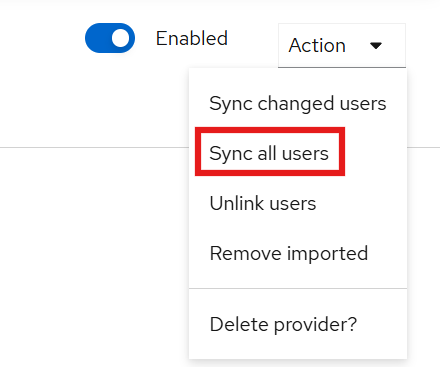
Enable it by clicking the
Enabled buttonin the top-right corner, as shown below:
Configuring LDAP Settings
-
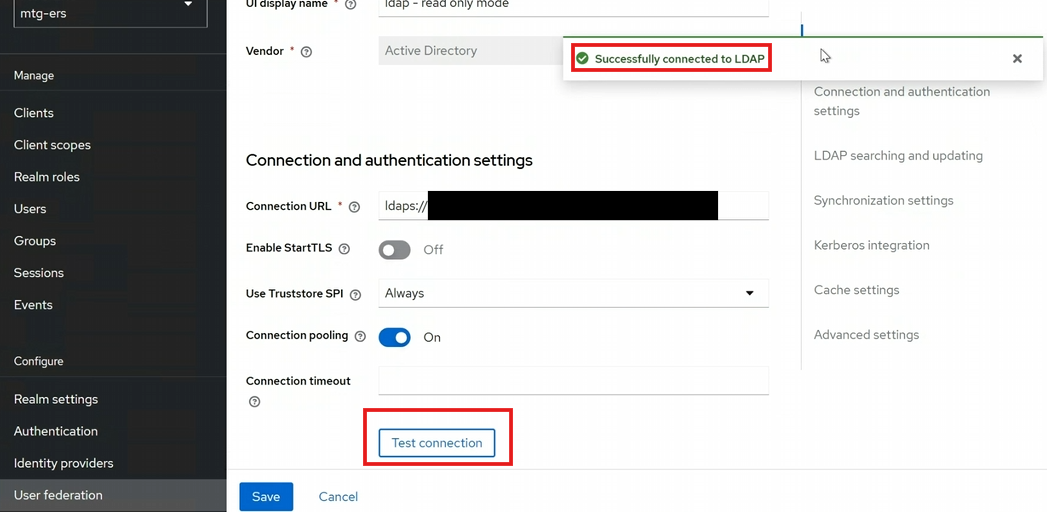
Configure the fields with the appropriate information corresponding to your Active Directory.
-
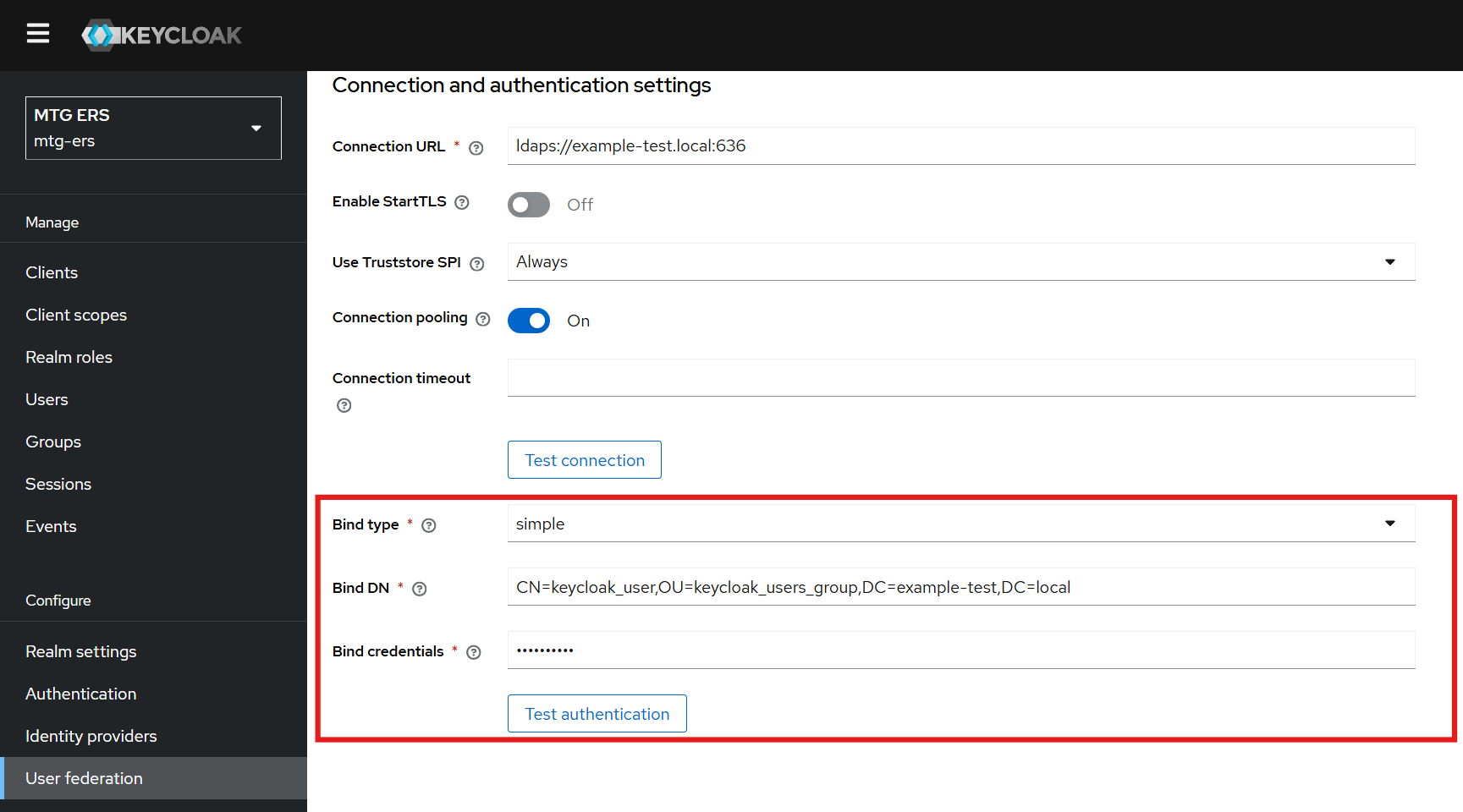
Navigate to the Connection and Authentication Settings section.
Configuring Bind Type, DN and Credentials
-
Set the following fields to enable authentication testing:
-
Bind Type: simple
-
Bind DN: Retrieve this value from Active Directory (see below).
-
Bind Credentials: Use the Active Directory admin password.
Retrieving Bind DN from Active Directory
-
Open the Active Directory Users and Computers tool.
-
Navigate to the
ad.example.comdomain dropdown. -
Create a dedicated group for the users you wish to bind with MTG CLM (if not already created).
-
Select a user from this group, go to
Properties → Attribute Editor → distinguishedNameand copy the value. -
Paste the copied value into the Bind DN field in Keycloak.
Proceeding to the LDAP Searching and Updating Section
-
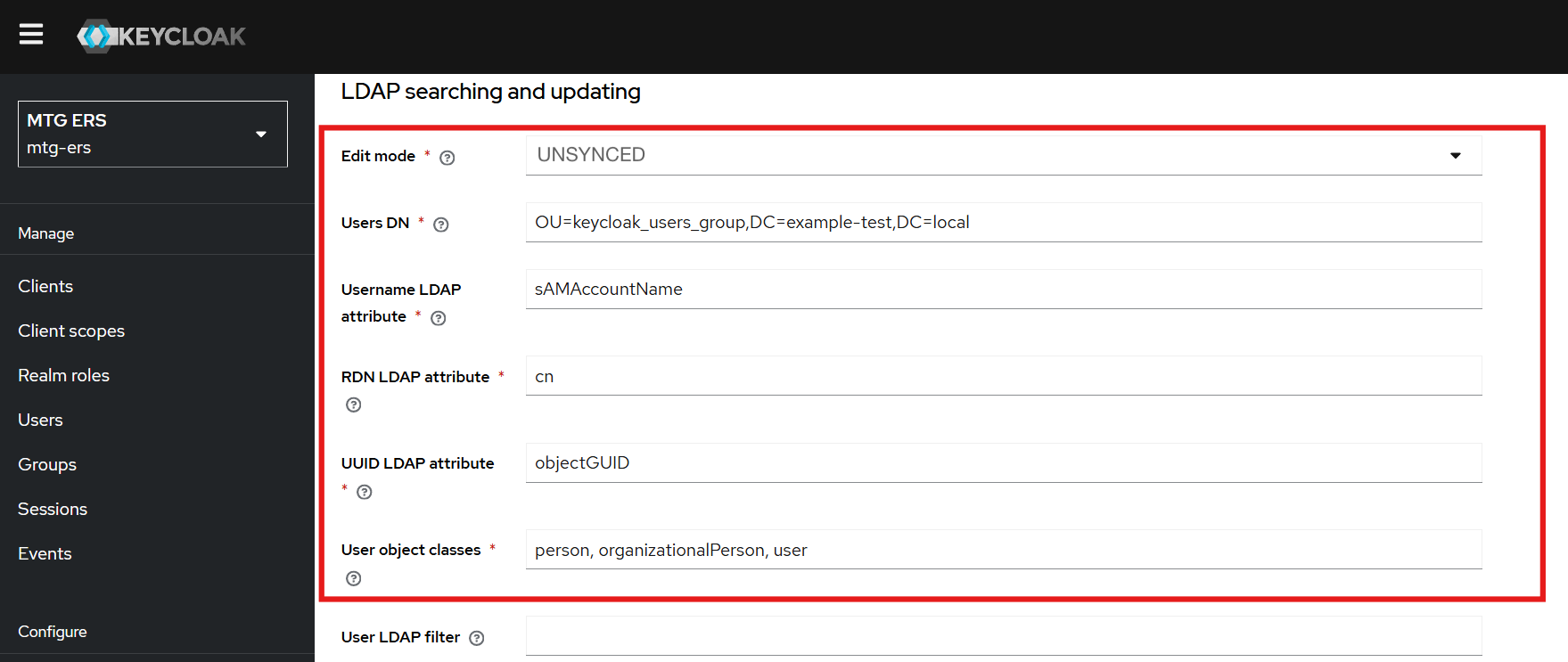
Keep the Edit Mode set to
UNSYNCED. -
Set the
Users DNfield to match the group of users you wish to import from Active Directory.
|
The Edit Mode option must always be set to |
Role Mapping Overview
-
Keycloak groups can be mapped to Active Directory (AD) groups and vice versa.
-
Roles can be assigned to users and permissions can be granted to roles for better access control.
-
Preconfigured templates are available in the Mappers section for facilitating role mapping between AD and Keycloak.
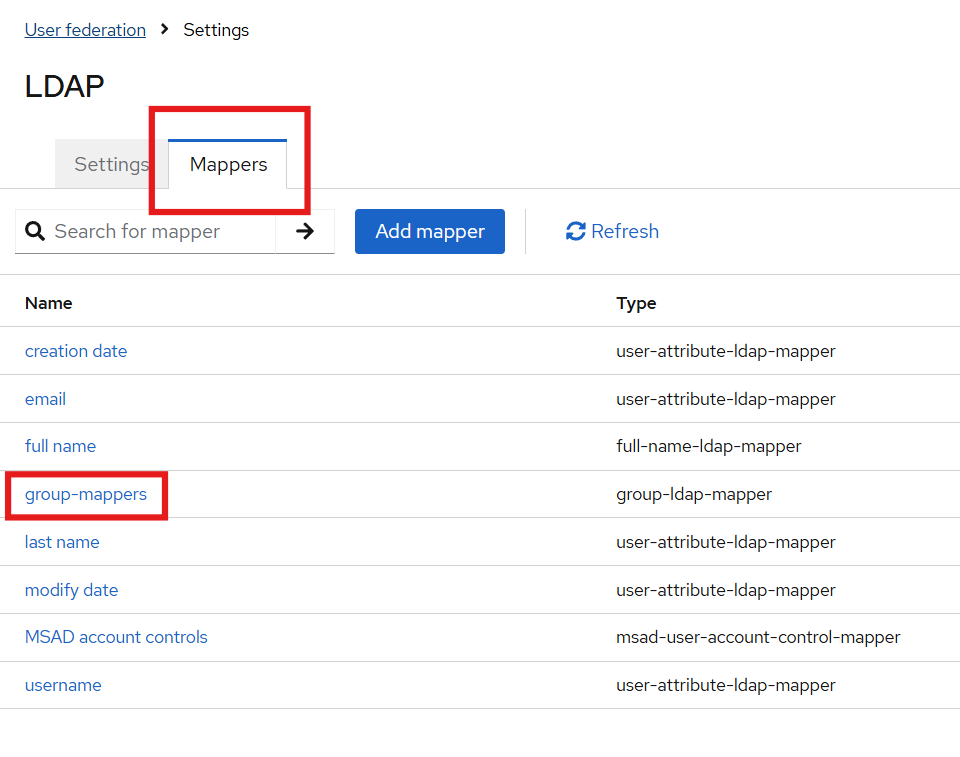
Configuring LDAP Groups in Keycloak
-
Paste the copied distinguished name into the
LDAP Groups DNfield in Keycloak.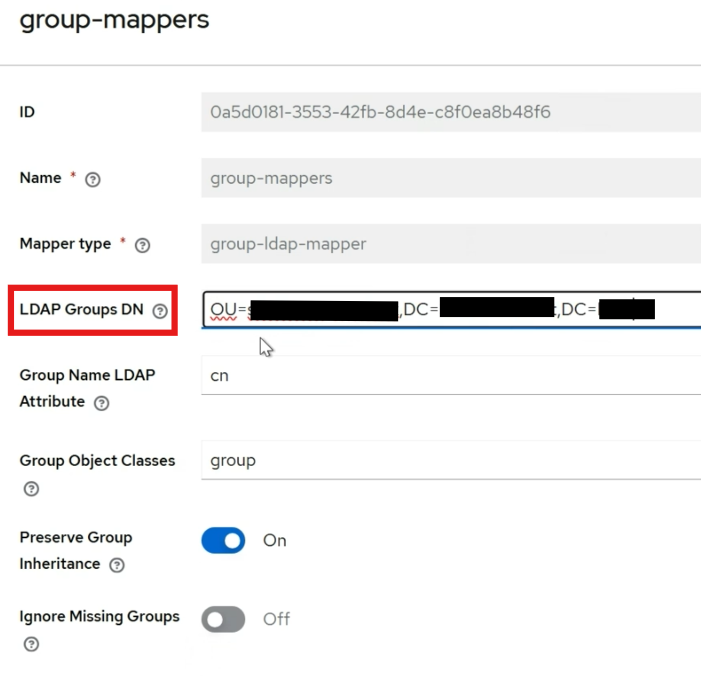
Setting Member-Of Attribute
-
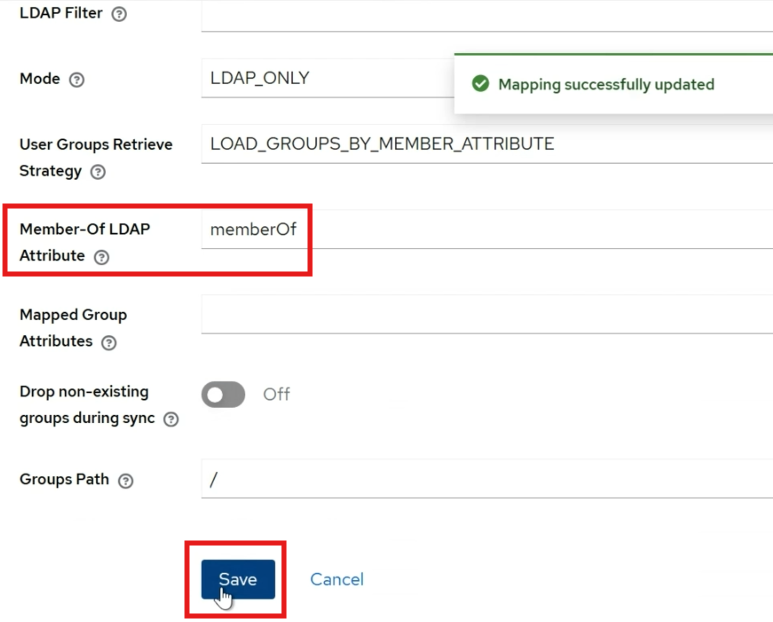
Ensure the
Member-Of LDAP Attributeis set tomemberOf. -
This ensures the mapping applies to all members of the specified group.
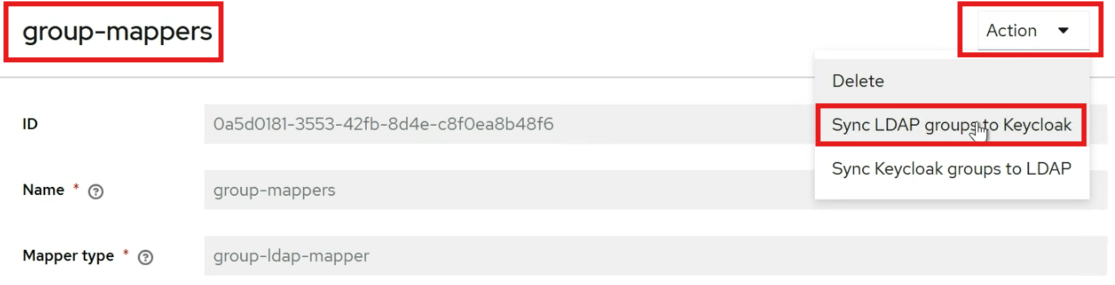
Assigning Roles to Groups
-
Navigate to the Groups section in Keycloak.
-
Select the group to which you want to assign a role.
-
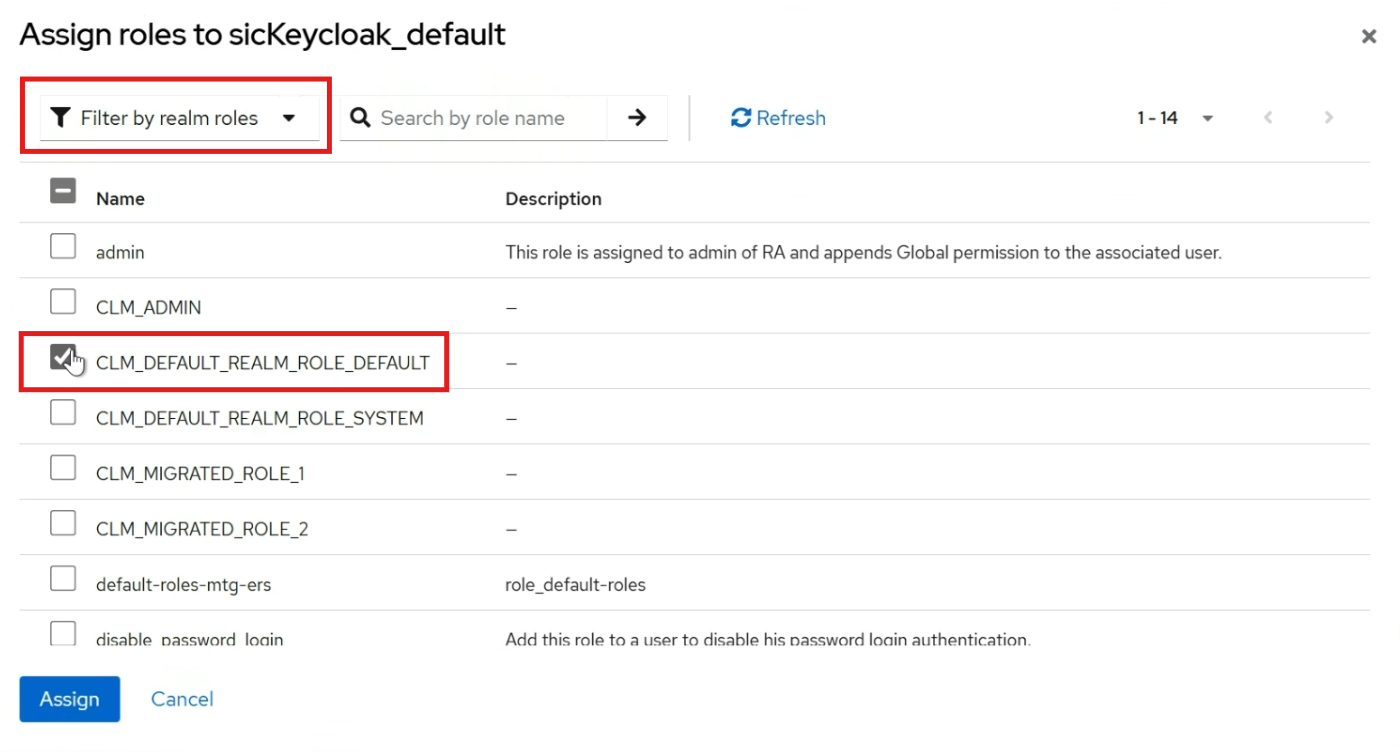
Go to the Role Mapping tab.